
The Rule Sets item in the Utilities section of the Project Explorer allows GENESYS users to define rule sets that impact how their diagrams are shown, including what objects appear on the diagram and their display properties.
The Browser pane lists all defined rule sets in alphabetical order. Rule sets are defined on a per project basis, enabling each project to maintain the collection of rule sets that best meets the project's requirements.
Rules
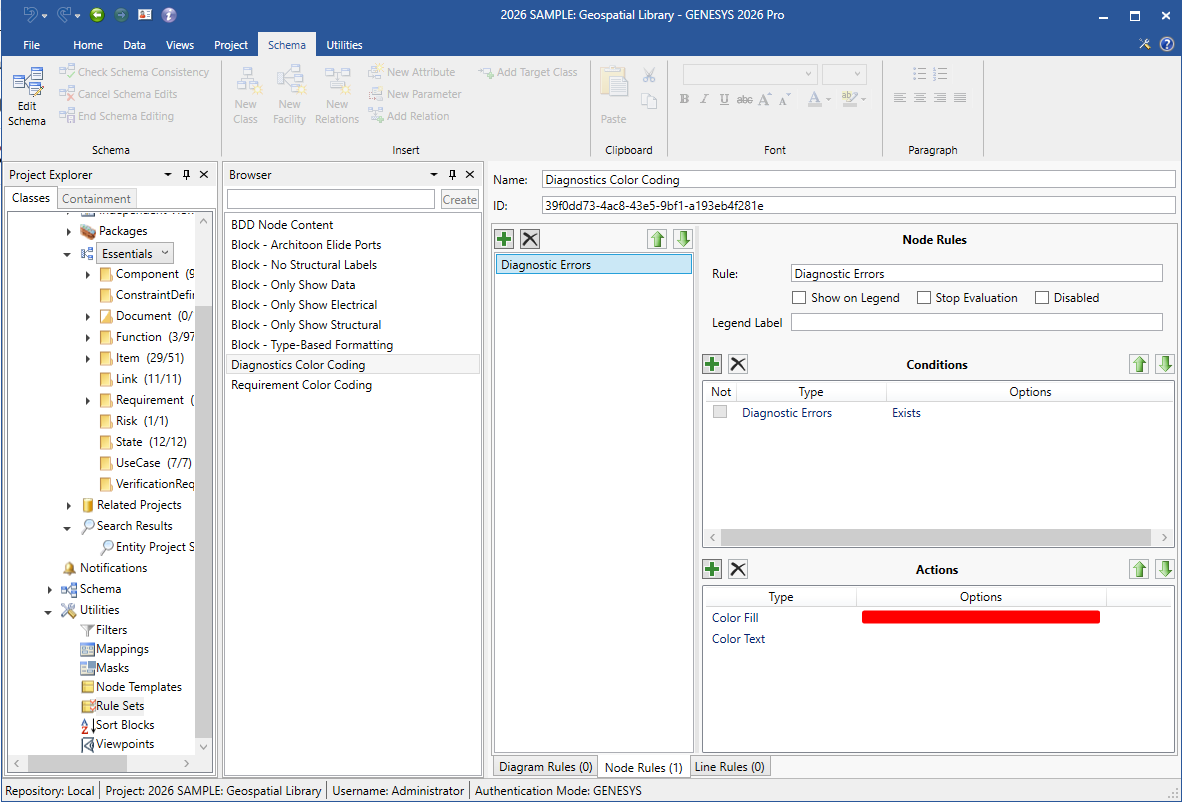
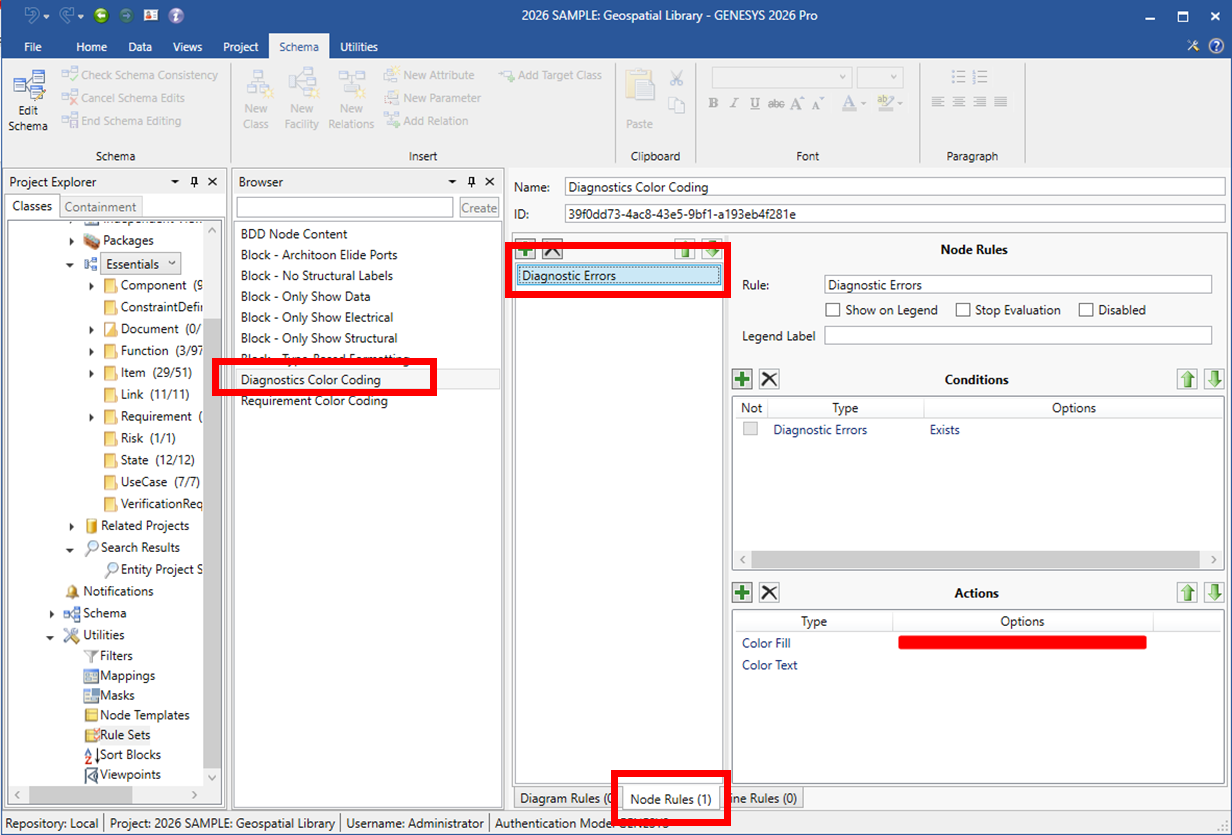
When you select a rule set, the available rules in the rule set display in the order that they will run, in the Rules pane at the center of the window. When you select a rule, the rule information displays in the Property Sheet on the right side of the window. Rule names must be unique per rule set and rule type.
Rule Set Properties
Rule Sets contain the following two properties:
-
Name
-
ID - must be unique
Rule Properties
A Rule contains the following property:
-
Name
Rule Types
GENESYS has three rule types:
-
Diagram Rules - rules that are run against the diagram as a whole
-
Node Rules - rules that are run against the nodes on a diagram
-
Line Rules - rules that are run against the lines on a diagram
Selecting the Diagram Rules, Node Rules, or User Rules tab at the bottom of the Rules pane accesses the available diagram rules, node rules, or user rules, respectively, for that rule set.
In the screen above, the Diagnostic Errors rule will color the background of any nodes on the diagram that contain diagnostic errors in red.
Rule Set Commands
Rule Set commands include:
-
Create Rule Set
-
Duplicate Rule Set
-
Delete Rule Set
Rule Commands
Rule commands include:
To apply a Rule Set to a diagram, see Apply a Rule Set to a Diagram.