Display Multiple Diagram Views on Reports
GENESYS has the capability to display multiple diagram views on reports.
-
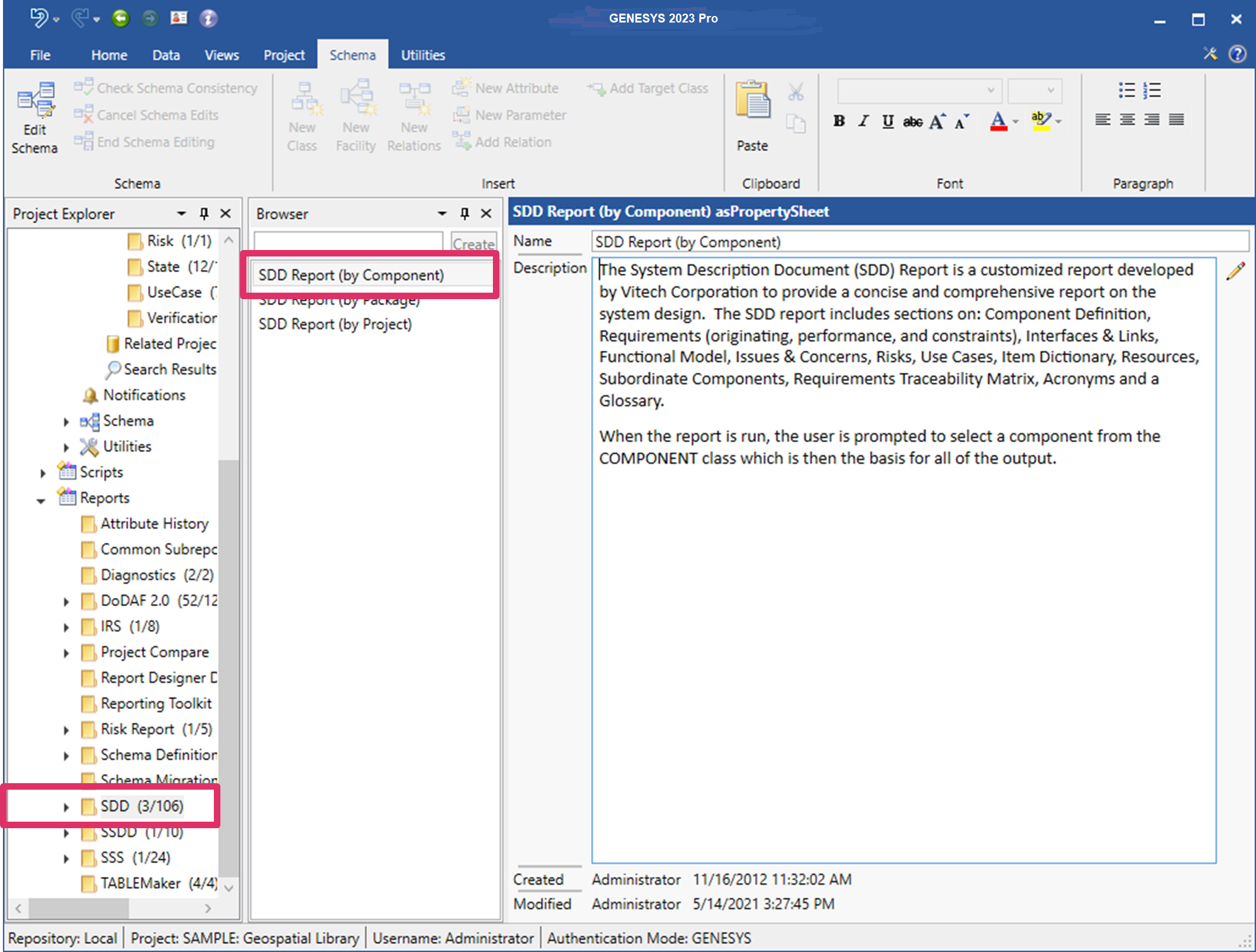
In Project Explorer under Reports, select the report category that you want to view.
All the reports in that category display in the Browser pane in the center of the window.
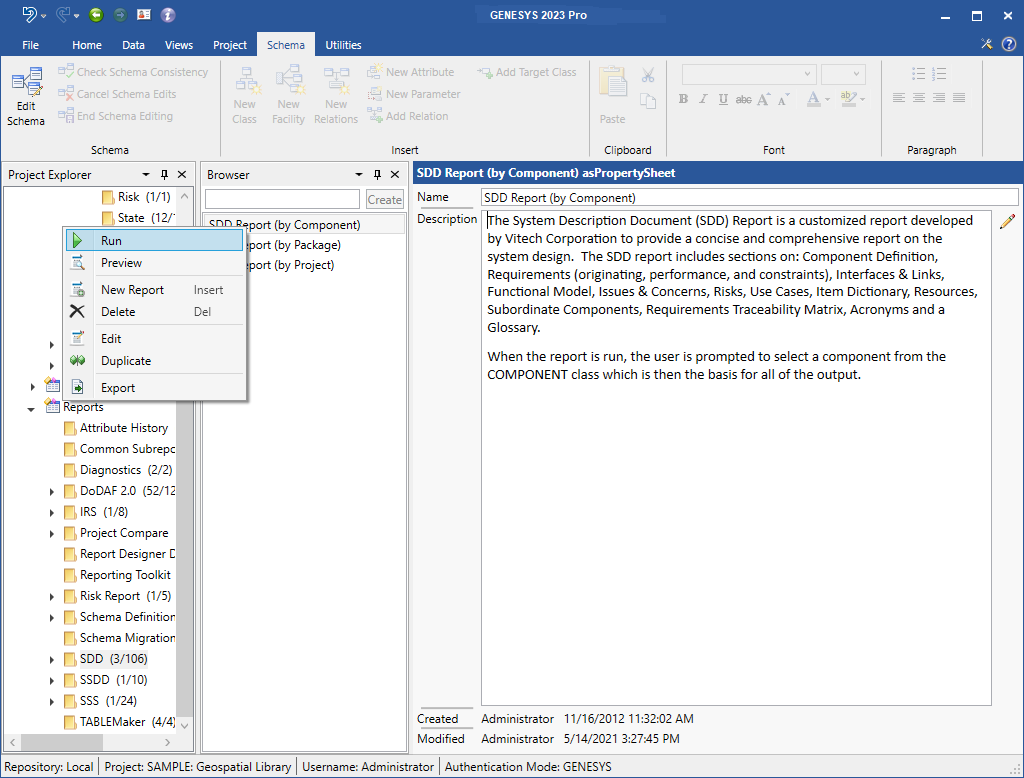
In the example below, we selected SDD reports and the SDD Report by Component.
-
Select the report section or subreport where you want the multiple views to display by clicking the arrow next to the report category (in this case SDD reports) in Project Explorer.
-
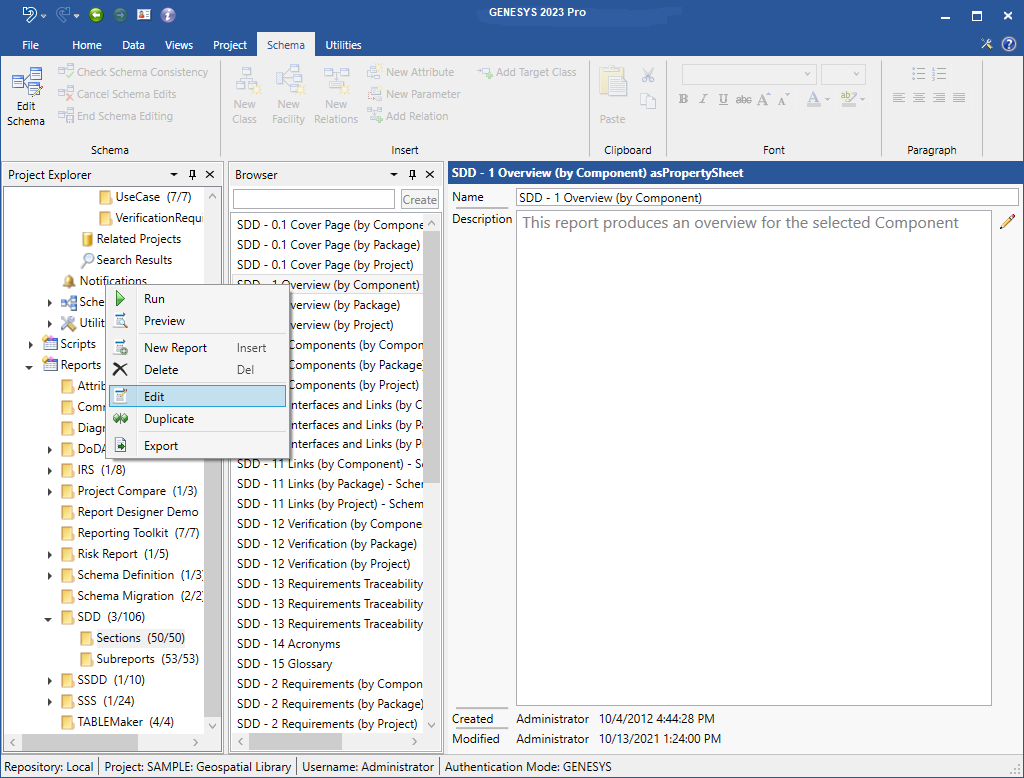
Then select the Sections or Subreports folder that contains the section or subreport you want to edit.
The list of report sections or subreports will display in the Browser pane.
-
Right-click on the report section or subreport that you want to edit and then select Edit on the drop-down menu that appears.
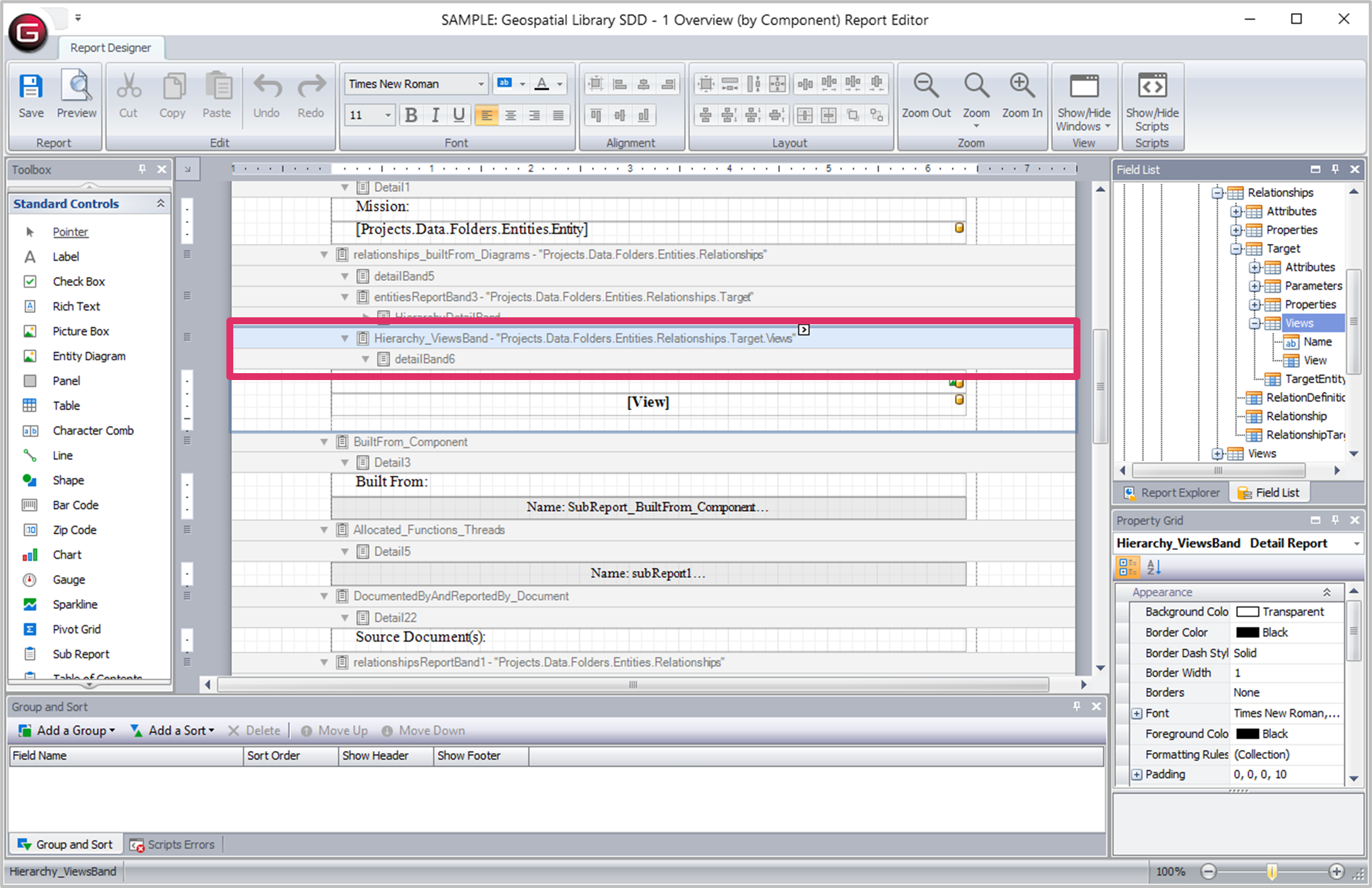
The Report Designer where you edit the report opens.
-
Find the report section or subreport you want to edit in the center of the window and then click the button next to it that looks like a greater than symbol
The following window appears.
-
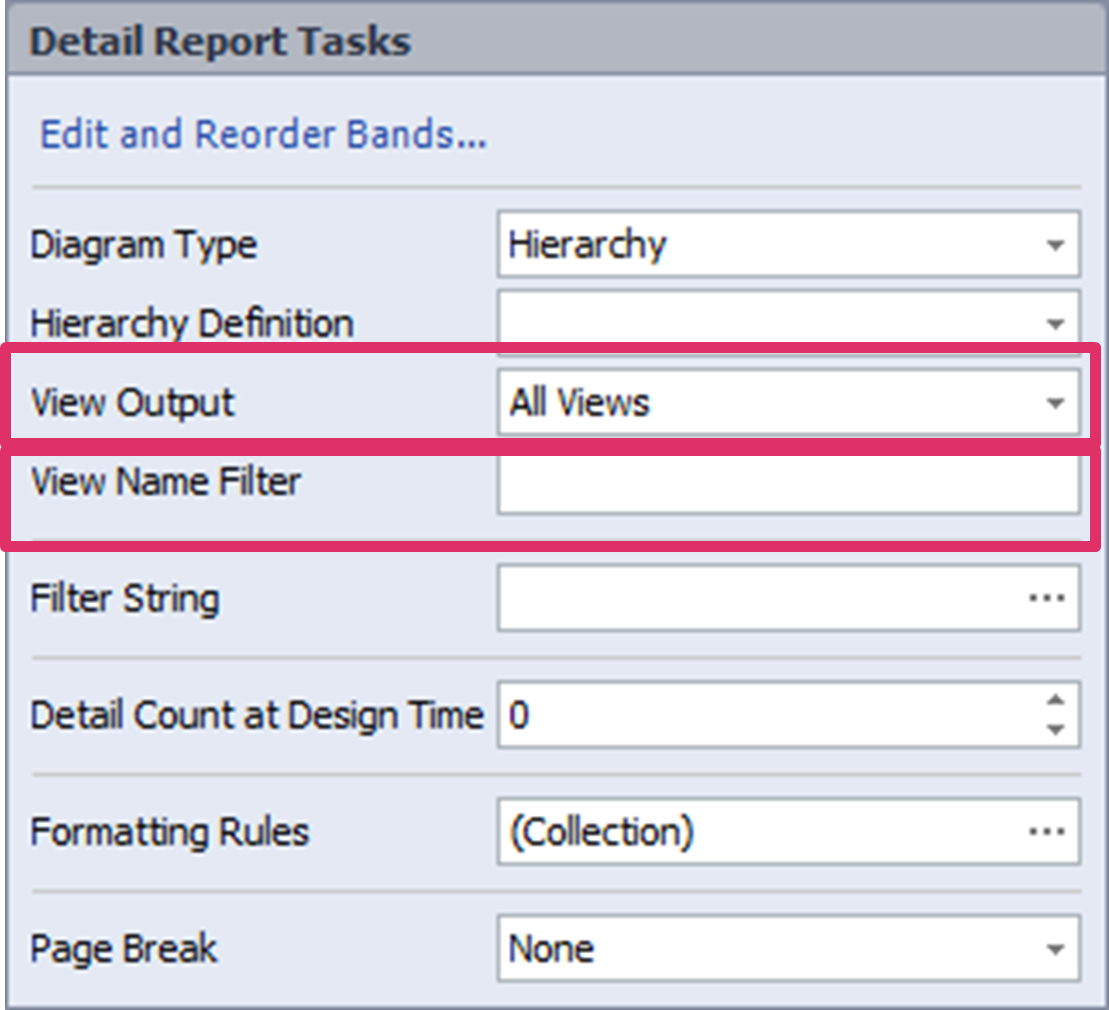
Select All Views for the View Output field. By default, the default view displays.
-
To filter which views display, enter a filter in the View Name Filter field. For example, if you enter Main, all views with Main in the name will display.
You can also use a wildcard filter by entering a part of the name followed by an asterisk (i.e., ma* and all views starting with the letters ma will display on the report.
-
To run the report to see the multiple views, right-click on the report name and then select Run on the drop-down menu that displays.
-
Select a location to save the report.
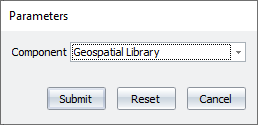
10. Then, select the parameters for the report in the dialog box that appears.
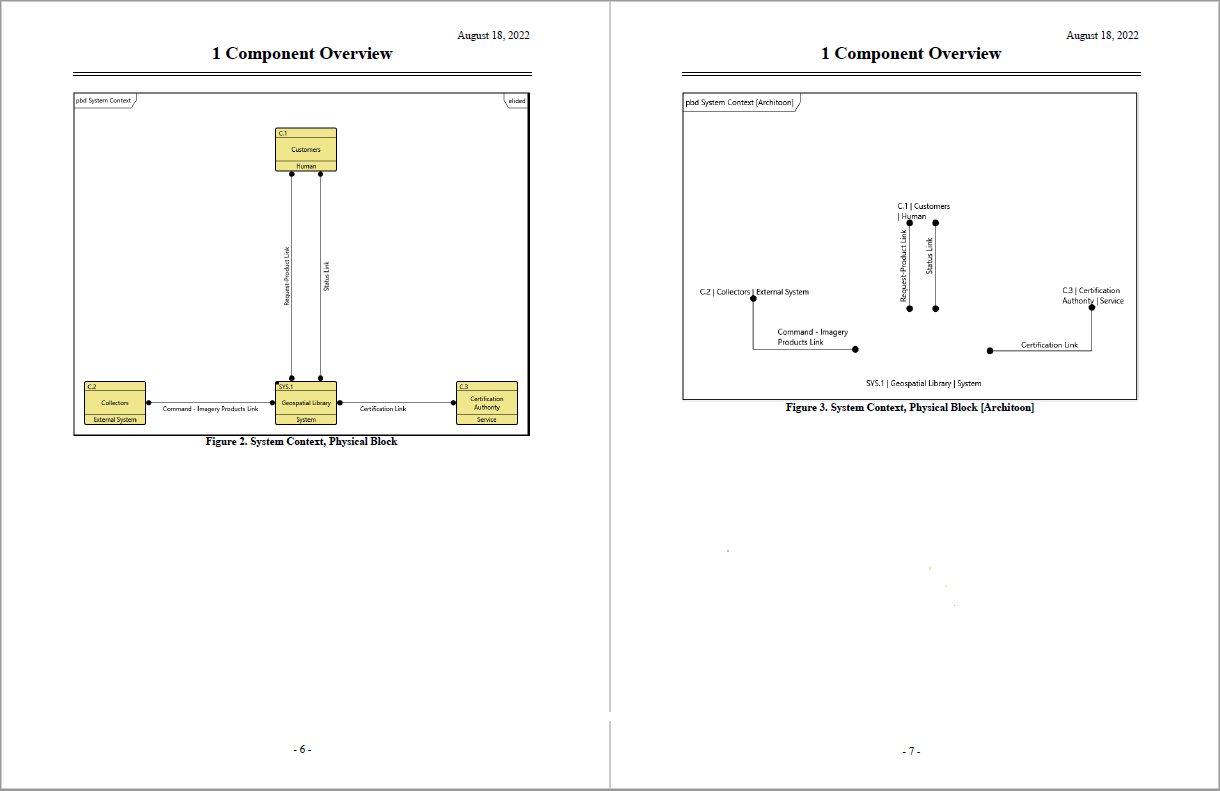
Multiple views of the System Context, Physical Block diagram display on the SDD Report by Component report shown below.