

The Spell Check feature, accessed on the Home ribbon, enables you to check a selection for misspellings. This command is context sensitive - meaning that what you have selected when you invoke the command will determine what you are checking. For instance, if you have the project property sheet selected, the entire project will be checked. If you are editing the schema, the entire schema will be checked.
Valid areas for spell check:
-
Project
-
Package
-
Folder
-
Entity
-
Schema
Once the command is invoked, the scope of the check will be confirmed for each area except when an entity is selected. When a package or folder is selected you have the choice to check subpackages or subfolders.
Once confirmed, the command will start looking for a misspelling. While it traverses the selection a progress meter appears with a Cancel button.
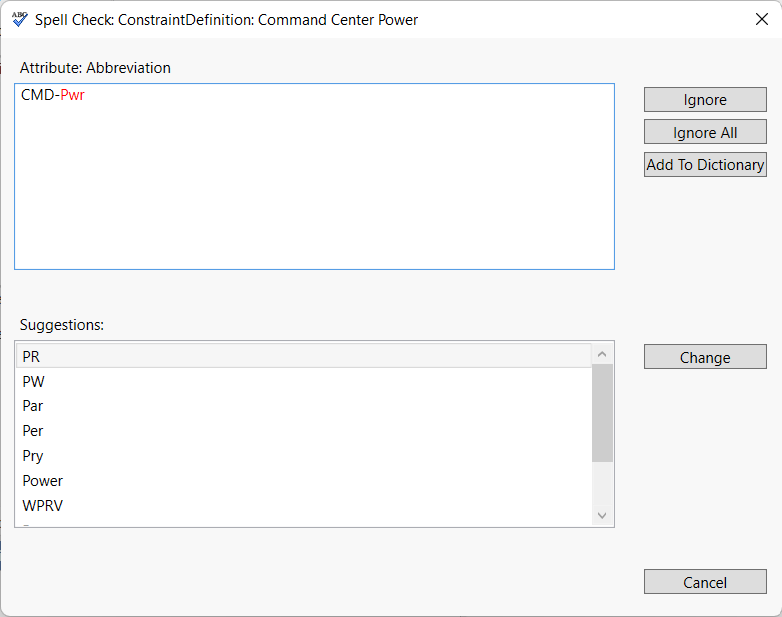
Once a misspelling is found a dialog will appear showing the misspelling, where it was found, and the following options:
-
Ignore - Ignore this misspelling and continue checking.
-
Ignore All - Ignore this misspelling for the rest of your user session and continue checking.
-
Add to Dictionary - Add this word to your custom dictionary and continue checking.
-
Change - Change the word highlighted for the suggestion selected and continue checking.
-
Cancel - Cancel spell checking.
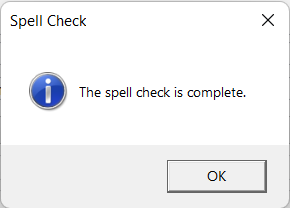
Once the spell checking is completed, a dialog will appear confirming completion.
|
NOTE: |
The custom dictionary is saved to the users hard drive. On a Windows 10 machine, it is stored in the %AppData%\Microsoft\Spelling\<language tag>\Vitech_Genesys.dic file where <language tag> is en-US for US English. On a Windows 7 machine, the dictionary is stored in the %AppData%\Roaming\Vitech_Corporation\<language tag>\Vitech_Genesys.dic file.
The dictionary is a text document and can be edited if desired. |