
IDEF0 Diagram

The IDEF0 (ICAM DEFinition for Function Modeling, where 'ICAM' is an acronym for Integrated Computer Aided Manufacturing) diagram presents an integrated picture of the inputs, control, outputs, and mechanisms (ICOM) for a function's decomposition. Part of the behavioral (logical architecture) representation set, the IDEF0 diagram displays a great deal of context information on the interrelationships of the decomposition without displaying the actual control logic / structure of the decomposition. Originally specified by National Institute of Standards and Technology (NIST) Standard FIPS-183, the IDEF0 diagram is used less frequently than other behavioral representations but is still a valuable part of an integrated representation set.
The IDEF0 diagram is available for entities in the Function class (as well as any other subclasses of ProcessingUnit).
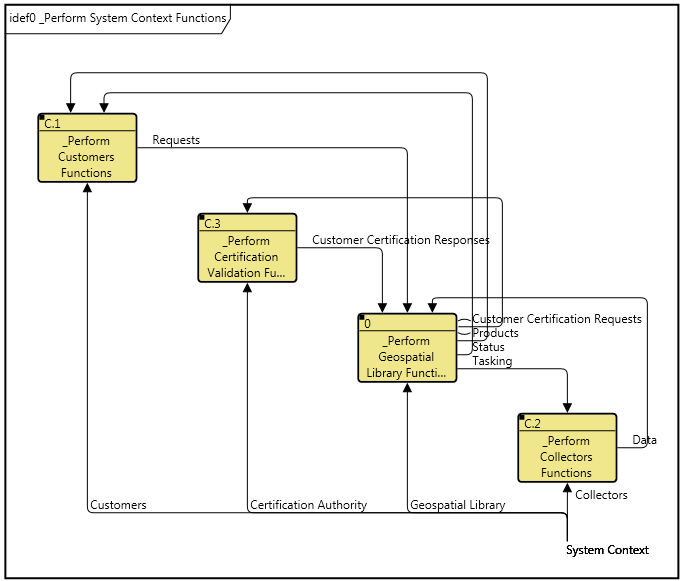
On an IDEF0 diagram, the subfunctions are shown on the main diagonal. The order of functions is automatically determined by GENESYS, which traverses the underlying structure of the parent function (as shown graphically in an activity diagram or EFFBD). The structure is traversed left to right with parallel and select constructs traversed one branch at a time.
For each functional node:
-
Inputs enter on the left. These can either come from the edge of the diagram (external inputs) or from another function on the diagram.
-
Controls (triggering data) enter on the top. These can either come from the edge of the diagram (external triggers) or from another function on the diagram.
-
Outputs exit on the right. Outputs can either connect to another function on the diagram, exit to the edge of the diagram, or both (representing an output that is input to / triggers both internal and external functions).
-
Mechanisms (allocation to Components) enter on the bottom.
|
NOTE: |
The IDEFO A-O variant (pronounced "A minus zero") provides a contextual ICOM view of a function at any level in your behavioral hierarchy. Though related in concept, the representation differs from the primary IDEF0 and is implemented as a separate diagram in GENESYS. |
The ICOM representation on an IDEF0 diagram has two special aspects:
-
Branching - Individual ICOM arrows fork and join on the diagram. Where an arrow forks, that represents the relationship between a parent entity and a child entity. Where two arrows join, that represents the relationship between a child entity and a parent entity. In this way, the IDEF0 diagram elegantly represents multiple levels of hierarchy in items and components, bringing additional clarity to the model.
-
Tunneling - Tunneling is a technique within IDEF0 to hide an ICOM in part of the model. The use of parentheses around either the head or tail of an arrow depicts a tunnel in IDEF0. A parenthesis around the head of an arrow that is entering a function box indicates that the ICOM associated with that arrow will not be seen on the decomposition of that function. If the ICOM does reappear, it will have parentheses around its tail. GENESYS handles this issue automatically. To insert a tunnel, just remove the item on the child page, and then GENESYS automatically inserts a tunnel on the head of the arrow on the parent page.
An IDEF0 model should have a purpose and viewpoint. These are usually placed on the context page. In GENESYS these can be inserted by using the Note command.
-
Purpose - a brief statement of the reason for a models existence.
-
Viewpoint - a brief statement of the perspective of the model.
|
NOTE: |
A good reference for further information on the IDEF0 diagram is National Institute of Standards and Technology (NIST), Federal Information Processing Standards Publication 183 (FIPS PUB 183), Specification for Integration Definition for Function Modeling (IDEF0). |
Toolbox Properties
In addition to the classic diagram options, the IDEF0 diagram settings include:
-
Show Box Numbers - controls whether or not to display IDEF0 box numbers in the lower right corner of every icon.
-
Use DRE - controls whether a Detail Reference Expression (DRE) instead of a decomposition box in the upper right corner represents that an additional layer of detail exists. If the DRE is used, the entity number is displayed below the lower right corner of the icon to indicate the number of the decomposition diagram for the entity.
Diagram Toolbox
The constructs and key entities tabs allow you to quickly develop your IDEF0 diagram, while the all entities tab enables you to relate your functions, items, and components to the remainder of your system definition.
Constructs
-
New Child - drop onto any node to create a new function
-
Children - drop onto any function node to add an existing function
-
New Input - drop onto any function node to create a new item as an input (inputs)
-
Inputs - drop onto any function node to add an existing item as an input (inputs)
-
New Control - drop onto any function node to create a new item as a control (triggers)
-
Controls - drop onto any function node to add an existing item as a control (triggers)
-
New Output - drop onto any function node to create a new item as an output (output from)
-
Outputs - drop onto any function node to add an existing item as an output (output from)
-
New Mechanism - drop onto any function node to create a new component as a mechanism (performs)
-
Mechanisms - drop onto any function node to assign an existing component as a mechanism (performs)
Utilities
-
Image - drop onto the diagram to insert a new picture
-
Note - drop onto the diagram to insert a new note (descriptive text in a note icon)
-
Shapes - drag one of the shapes from the toolbox and drop onto the diagram to insert a new shape
Key Entities
-
Component - drop an existing component onto a function node to assign the component as the mechanism (performs)
-
Function - drop an existing function onto the diagram background to it as part of the diagram decomposition (decomposed by)
-
Item - drop an existing item onto a function node to relate it to the node using the input to, triggers, or output from relation
All Entities - all classes and entities in the system model, allowing you to drag any entity on top of a diagram node to establish relationships with the balance of your system model
Context Menu Commands
-
ICOM
-
Arrange
-
-
Submenu listing entities
-
Elision Notes
Items that join or fork and appear on the boundary are special nodes that are combined into one unit. These units can be hidden as one. Items that join or fork internal to the diagrams (inside the node "box") are not combined and therefore must be hidden separately.
Tips and Tricks
-
The ICOM labels and arrows on an IDEF0 diagram represent first class objects - items in the case of inputs, controls, and triggers; components in the case of mechanisms. Double-clicking on a label or an arrow is a shortcut for opening the text view for the underlying entity.
-
It is not unusual for IDEF0 diagrams to show a large amount of data, often cluttering the diagram and potentially obscuring the real insight in the model. To best manage this, you can leverage any combination of the following techniques:
-
Increase the icon size and spacing - either for an individual arrow or the entire diagram - providing more space for the richness of the model.
-
Adjust the ICOM label template, selectively changing what is displayed to better manage information content.
-
Reposition and resize ICOM labels to customize the default layout.
-