

The Export TeamView command, accessed on the Utilities ribbon, outputs the contents of the system design repository in HTML format and generates a Home Page accessible by anyone with a Web browser.
-
Click the Export TeamView icon on the Utilities ribbon.

-
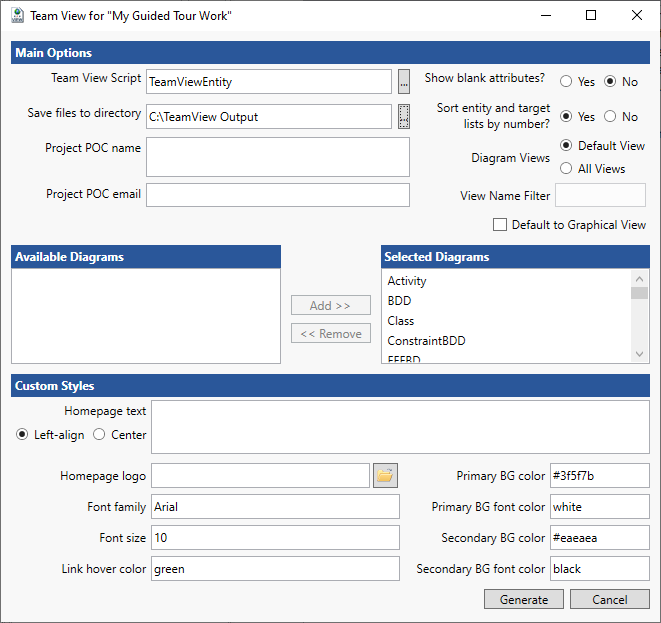
Select a location where the report Home Page can be saved by clicking on the Ellipsis button next to the Save files to directory field at the top of the window. (Make sure that you create a folder for the output since it may contain hundreds of files.)
-
Select other options on the window as desired or leave the default settings:
-
Select the script used to generate the output.
-
Specify a Project POC that will be listed on the Home Page of the HTML output.
-
Specify if you show blank attributes. This feature can be used as a diagnostic tool to see what attributes are not filled in.
-
Specify if you sort the enteities and relationship targets using a numerical sort. No will sort and show lists alphabetically.
-
Specify which diagrams should be output - Default View or All Views.
-
View Name Filter - Used in conjunction with All Diagram Views to filter based on view names (wildcard* and ? can be used for matching names.)
-
Default to Graphical View - Default view is a property sheet. Selecting this option will default to a diagram view based on the default view in the script.
-
Select available diagrams on the left and click Add to add them to the selected diagrams. Click Remove to remove diagrams.
-
Specify if the Home Page text should be left aligned or centered.
-
Specify a Home Page logo by clicking the folder icon and browsing to an image. Any graphic image file can be used (BMP, PNG, JPEG, etc.)
-
Specify font family.
-
Specify font size.
-
Specify link hover color.
-
Specify primary background color.
-
Specify primary background font color.
-
Specify which secondary background color.
-
Specify secondary background font color.
-
Click Generate.
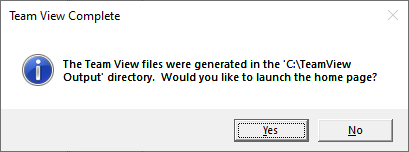
You will be prompted when TeamView completes processing.
-
Click Yes to launch TeamView in your default web browser.
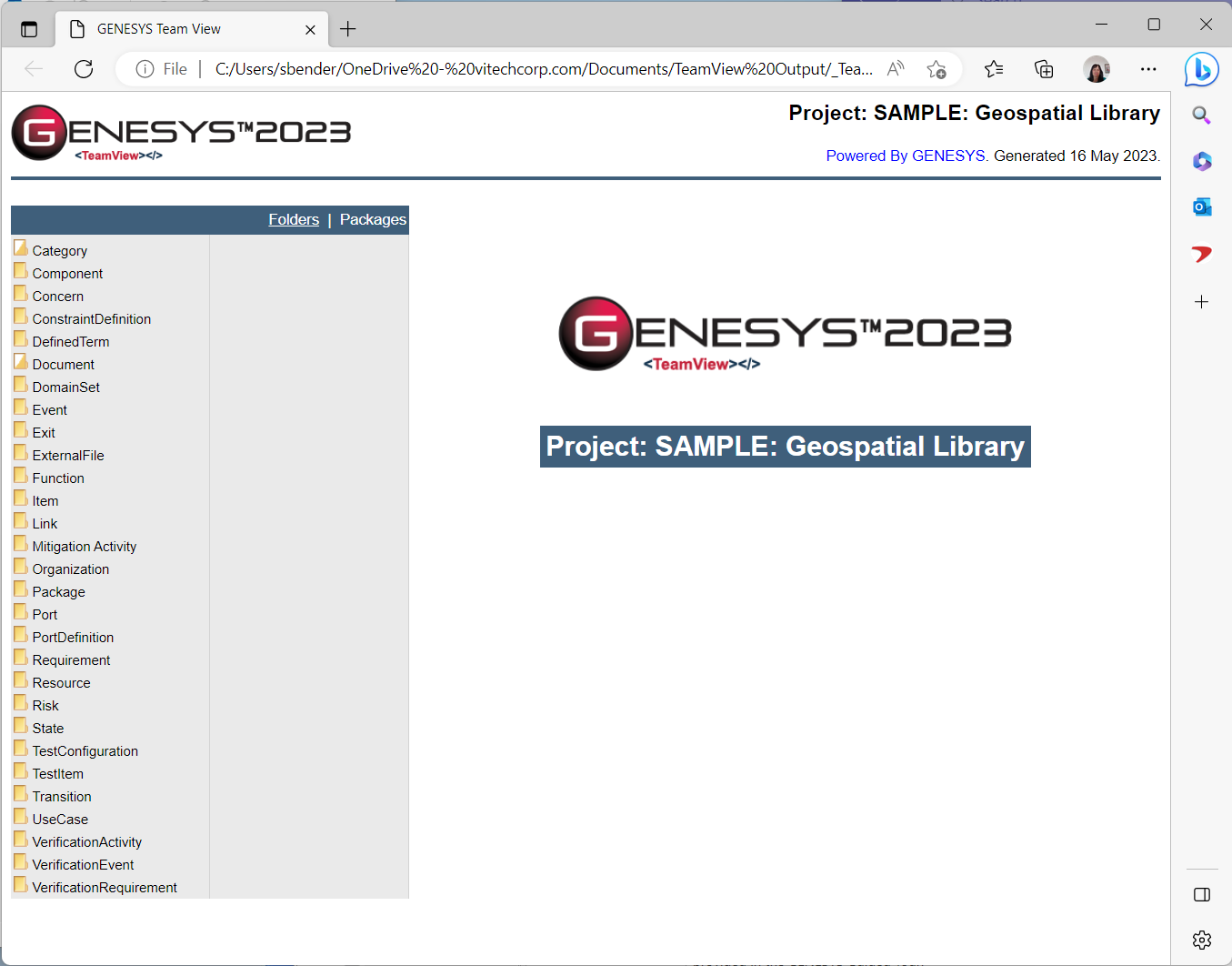
Clicking on a class/folder link in the left-hand list displays the corresponding entities on the right. From this list, you can select any entity to display its property sheet.
-
For example, click on the Component link. On the right, a list of all entities in the Component class displays.
-
Click on C System Context to show the property sheet.
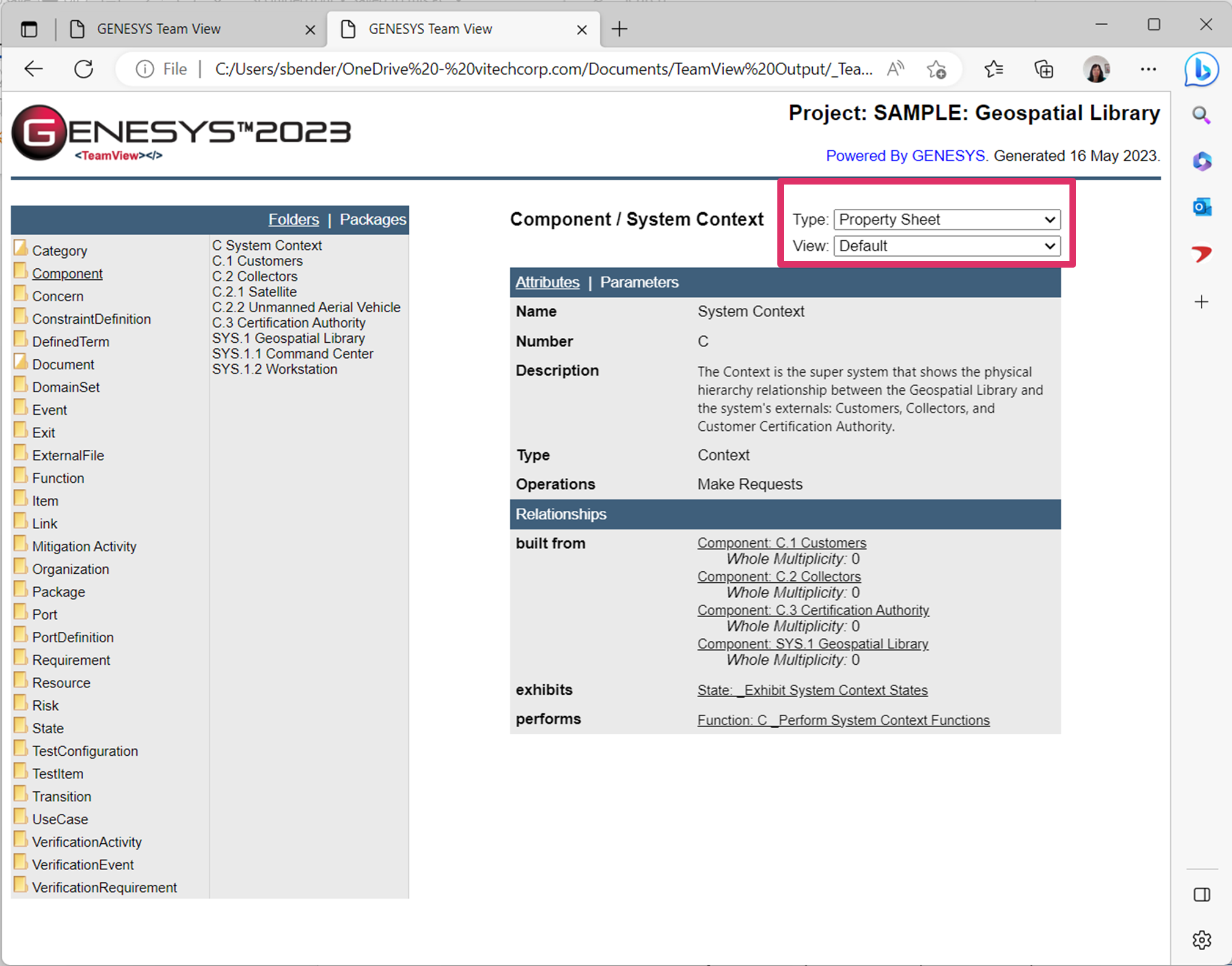
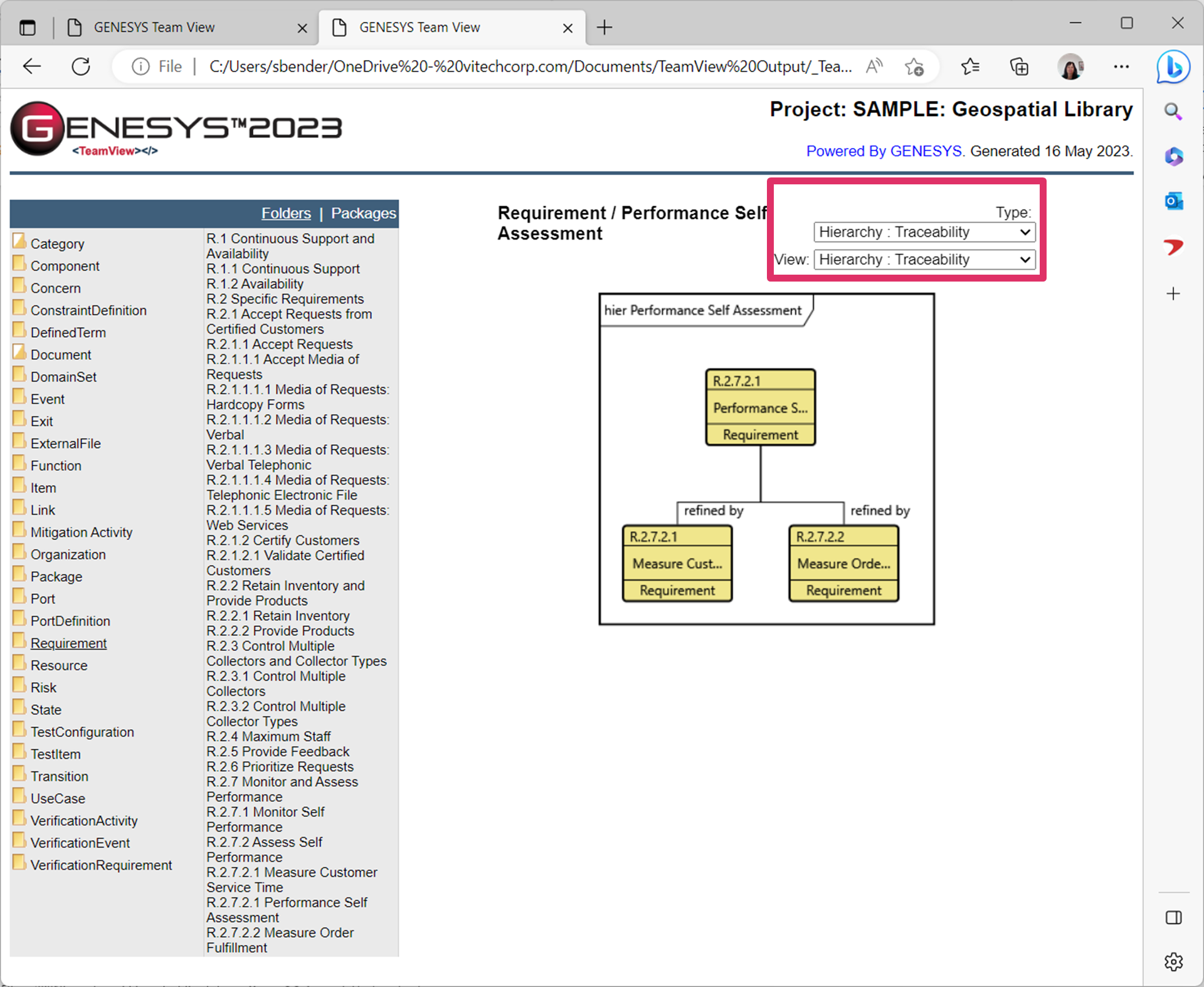
If All Views is selected for Diagram Views, a View drop-down list appears on the top right side of the page, listing all the views for the entity. When users select a type, the associated view is automatically selected.
At the Type drop-down list above the View drop-down list, if Property Sheet is selected for the Type, Default will be selected automatically as the view, as shown above.
|
NOTE: |
If you are using Microsoft Internet Explorer, a warning message might appear when you click on this function if it has an associated diagram file. Click OK. Then move your cursor to the security alert band in the browser and, from the pop-up menu, select Allow Blocked Content. When you get a final security warning, click Yes. You will then need to reselect the function and GL Geospatial Library to return to the entity information. From now on, you will be able to view any diagram in the HTML output without a warning. |
-
In the Relationships portion of the entity information, each relationship Target is a link to the text view for that entity. If the selected function has a diagram associated with it, users can access the diagram by selecting the link from the Type drop-down list located at the top of the text view.
In the example below, we selected the Requirement class/folder and the Performance Self-Assessment entity within this class. Since this entity contains multiple views, when we select Hierarchy Traceability for the Type, the Hierarchy Traceability view is selected for the view at the View drop-down list. This diagram will display in the window in place of the entity attributes and relationships. Each Entity and Link icon is a hyperlink to that entity.
-
Close the browser.