

The Import command, accessed under the File menu, enables you to load a repository backup, a project, a model segment, or a subset thereof from an interchange file on disk into the repository. When importing, you are first asked to select the desired file using the standard Windows file dialog. Supported file formats include GENESYS GNSX files as well as CORE XML files. GENESYS processes the GENESYS and CORE formats differently.
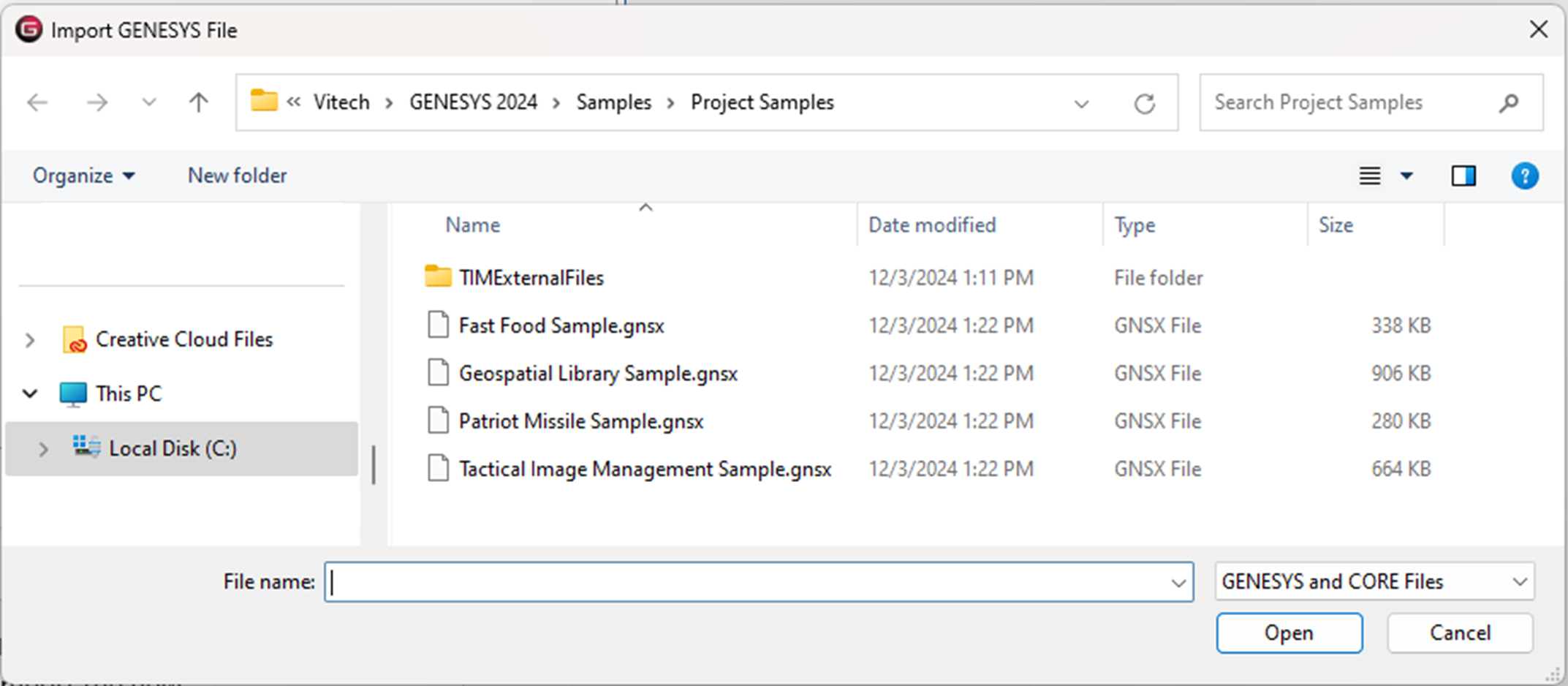
Importing GNSX Files
When importing data into the repository, the import wizard provides a number of options to control what data is imported and where it should be imported to. Within that framework, there are certain standards that GENESYS uses when dealing with data "collisions," merging information being imported, and the information currently in the repository.
-
Unless otherwise specified, the information being imported will take precedence over the information already in the repository ('last one in wins'). This is true for specific attribute values, view descriptions, user properties, etc.
-
Relationship lists and entity structures will merge.
-
When importing project backup, if the target project includes an entity with the same name as an entity being created, a conflict will be logged. GENESYS will proceed to import the new entity's attributes on top of the existing entity definition in GENESYS.
-
When importing project database changes, if the target project includes an entity with the same name as an entity being created, a conflict will be logged. GENESYS will automatically rename the entity being created using a "_001" suffix. The existing entity will not be overwritten. The assumption is that two users working offline may have independently used the same entity name. Therefore, GENESYS preserves each user's contribution for the project administrator or merge manager to resolve.
-
When importing model segments, different options are available. See Import Model Segments for full details.
-
Importing a project from a version of Genesys prior to the 2024 release will be imported into the root repository Project Folder. From the root repository, a project can be dragged and dropped into the desired Project Folder. If the project was exported from Genesys 2024 and the Project Folder was included in the export, Genesys will place the project in that Project Folder if it exists in the current repository or will create the Project Folder first then place the project in the folder if it does not currently exist in the repository.
Step 1
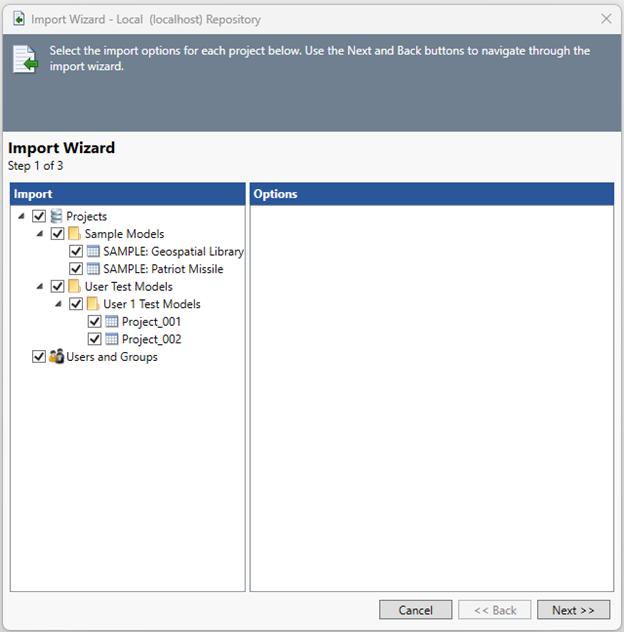
When you select a GNSX file to import, you will begin an import wizard to guide you through the import steps. In Step 1, you are prompted with the manifest from the selected file. In this step, you can select the subset of data you wish to import from the data file. If the file is a single project backup (the most common case), you will only see the single project in the optional data to import. If the file is a repository backup, you will have the option of selecting individual projects from the file as well as selecting the users and groups. If the import is of projects exported from GENESYS 2024 or later and it is from a repository backup, the Project Folder structure will also be included in the import wizard.
Step 2
If the file you selected includes project data, in the second step you will be prompted to specify the target projects to import the data into. This gives you great control over how to load the data. Most frequently, you will be importing a single project backup into a new project or importing a change set into an existing project. However, this step provides rich options to support a number of scenarios.
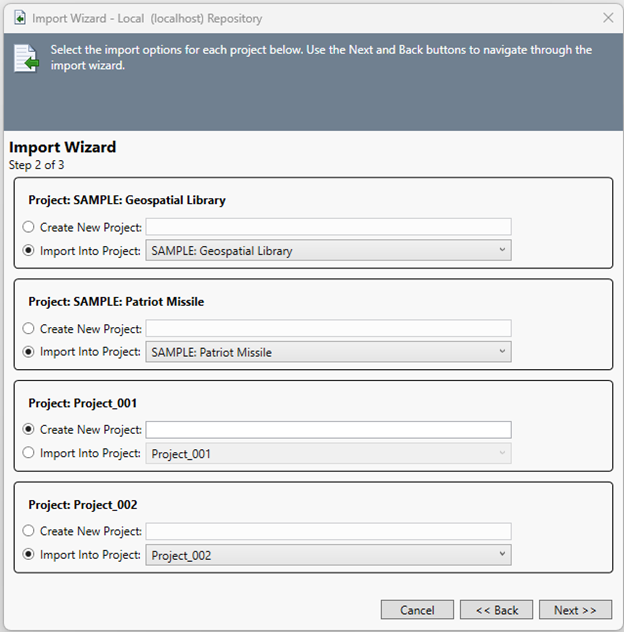
For each project selected from the import manifest, you have the ability to specify a target project for the project. If a project by the same name exists in the repository, the default selection is to import into the existing project. Otherwise, the default is to import into a new project of the same name. However, these are only defaults. In this step, you may:
-
Specify a different name for the project to be created.
-
Select an existing project to import into. The project list will include all projects you have access to in the repository.
If you want to import this file into a different repository, you must first create a connection with that repository and then import the file.
|
NOTE: |
If importing a report or script a project selection will not occur. The message, “No Projects selected for Import - please verify import selections” shall be displayed in the 2nd step of the Import wizard. This message can be ignored and the “Next” button selected to proceed with the import of the Report or Script. |
Step 3
In the third and final step, you have the opportunity to review the import actions before importing the file. Clicking Back will allow you to change the options. Clicking Import will proceed with the import. Clicking Cancel will abort the import.
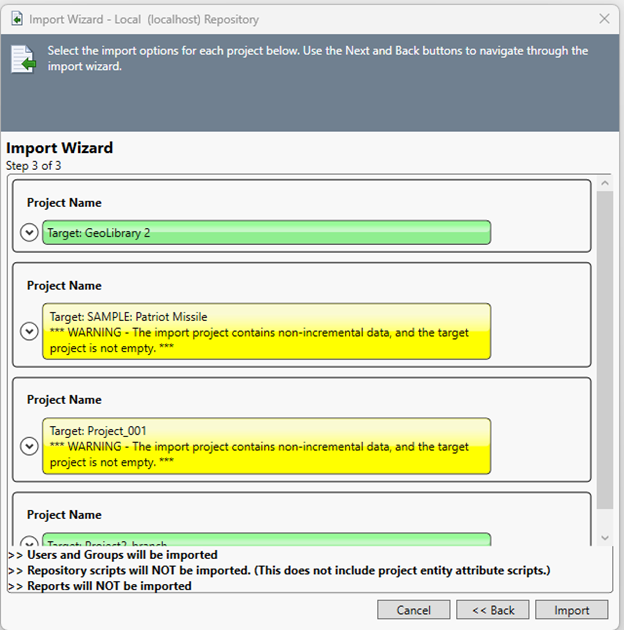
If you proceed and if the data is being imported into a remote repository, the file will be automatically uploaded to the other machine and the import performed remotely. Once the import completes, you will be notified through the Job Monitor.
|
NOTE: |
Critical Notes about the Import Process When importing a project backup or a repository backup into a new project or an existing project, the final step of the import process is to import the project-level access control information from the import file. In this scenario, the information from the import file replaces the existing project-level access control information, preserving the specification from the import file. |
Importing CORE XML Files
GENESYS supports the import of CORE 9 XML files natively using the standard Import command. When importing, the CORE data will be brought into projects using the GENESYS 4.0 schemas. GENESYS will choose the Base schema or the Capability Architecture Definition schema based on the schema from CORE.
There are differences between CORE and GENESYS noted below:
-
Scripting - CORE uses CORE script and GENESYS uses VB or C#. Therefore, all CORE scripts will be removed from the data and will have to be recreated in GENESYS.
-
Reports - CORE has a reporting framework that is used to create custom reports with elements inside projects. GENESYS does not use these entities so the following classes are stripped from the data:
-
DocumentFormat
-
ReportScript
-
Section
GENESYS will only import CORE data into an empty repository.
|
NOTE: |
What permissions are required to import? To import, you must have Full Control permission for the project. If you create a new project during the import process, you must be part of the Project Creation Group. |