

The Associate User command enables a System Administrator to link a Windows user account to a GENESYS user account. When using Windows Authentication as the authentication method for GENESYS, an administrator must set up a mapping between the Windows user and a GENESYS user. Once this is completed and the authentication mode has been set, the user will be able to launch GENESYS and will be logged in automatically. If there is an email address for the Windows user account, that value will be transferred to the GENESYS user.
Access the Associate User command in Administrative Tools under the Users tab.
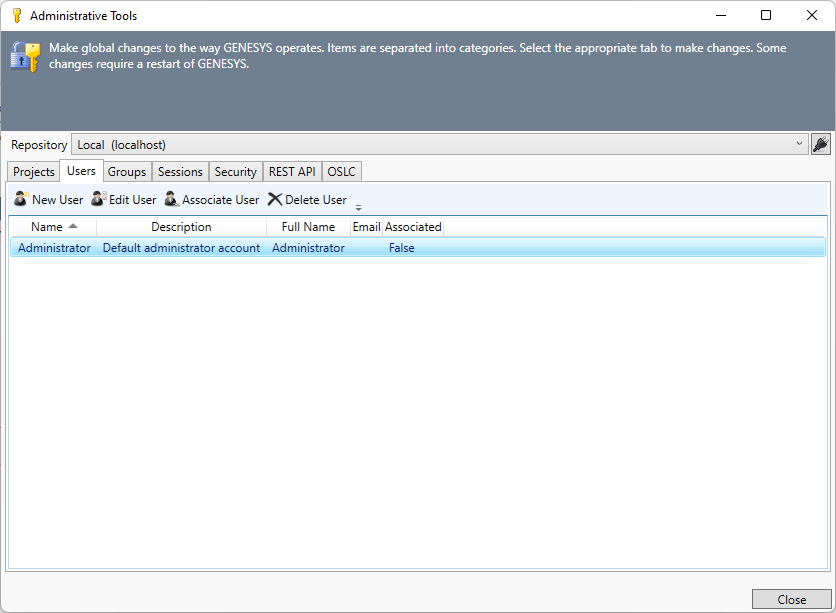
At the dialog that displays, an administrator can:
-
Create a new GENESYS user and associate this user with the selected Windows user
-
Associate an existing, unassociated GENESYS user with the selected Windows user
-
Disassociate (remove the association) between the selected Windows user and the GENESYS user
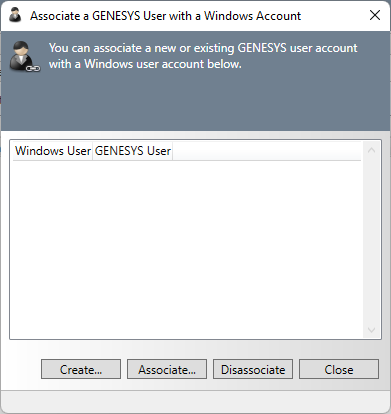
Select Create, Associate, or Disassociate, then select the user and click OK.
|
NOTE: |
What permissions are required to associate users? To create an association between Windows users and GENESYS users, you must be part of the Administrators group. |