
The Custom ribbon contains user-specified commands and is individual for each user in the repository. The commands on the ribbon can either open a file or run a pre-existing script.
To get started, click the Custom Ribbon icon located on the top right side of the window.

This opens the editing dialog for the ribbon commands.
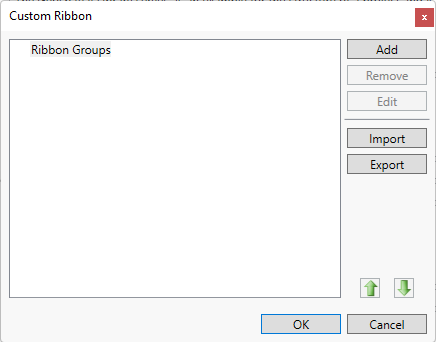
With Ribbon Groups selected, click the Add command to add a grouping to the ribbon. These groups are used to gather similar commands together on the Custom ribbon.
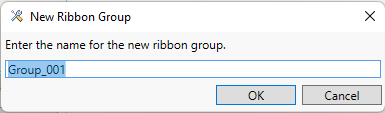
From this dialog, additional groups can be added or groups can be removed or edited. Also available are Import and Export of the ribbon information.
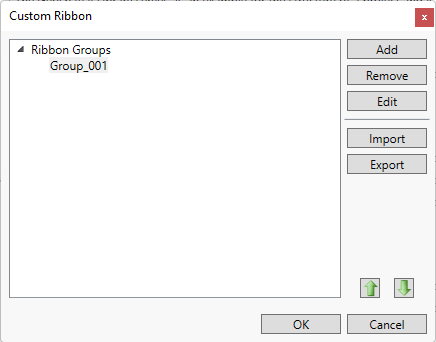
Once there is at least one group added and it is selected, click the Add command again.
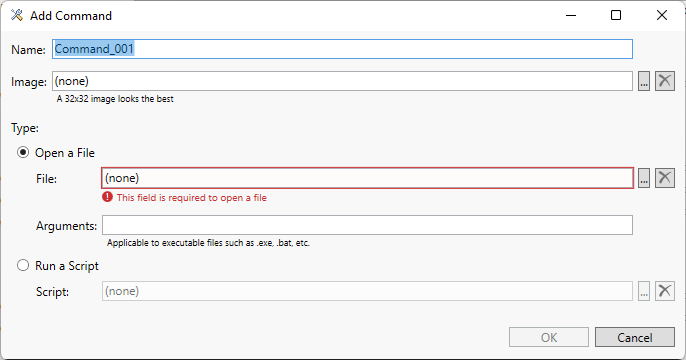
At the dialog that displays, you can create a ribbon command which will perform a specific action. The command can either open a file or run a script.
To set an Open File command, name the command, then select the file selector to the right of the Image File Name field to set an image for the command.
Select Open a File and browse to the document.
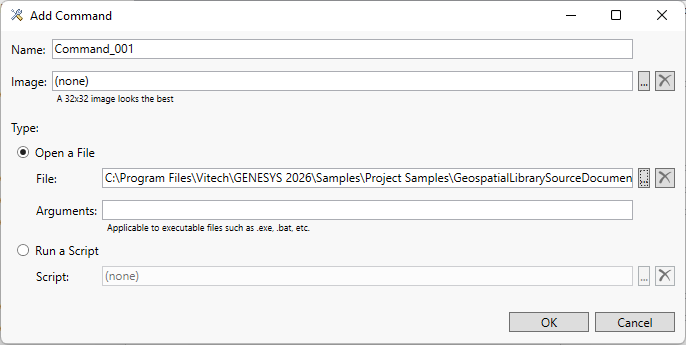
To add a command to the ribbon to run a script, select the script selector next to the Script Name field. A sample script has been included with the installation and can be found in the Scripts > Command Scripts folder in the repository. It tells you what entities are selected in the view.
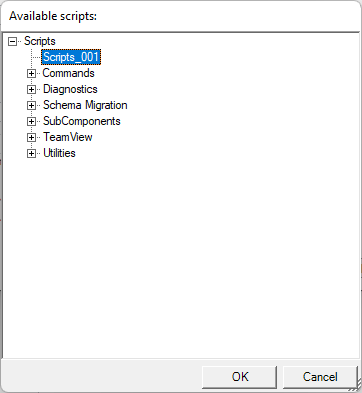
Select the desired script and click OK.
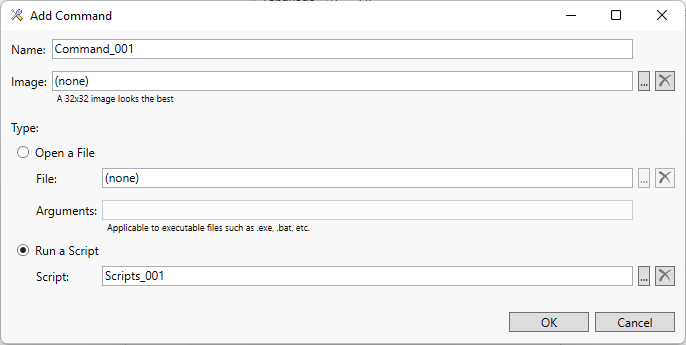
Click OK again.
Select the Custom ribbon to view the new commands that you added.

|
NOTE: |
When creating scripts to use in this ribbon, there is an "enablement" section which tells the command when to be available. Use the sample script to see how to implement this option. This can effect the users performance depending on how long the enablement script takes to perform. If there is an error in an enablement script, this could cause GENESYS to stop responding to user input. To disable the custom commands in order to correct an issue, change the option in the line key="CustomRibbon.SupportEnabled" value="True" in the GENESYS.exe.config file to False, then restart GENESYS. |
