
Configure the REST API in GENESYS Administrative Tools
The REST API can be configured in the GENESYS Administrative Tools. The entity relationship targets can also be accessed through the REST API.
-
To access the REST API in GENESYS, select Administrative Tools on the GENESYS Home screen, or select the Admin Tools icon on the Utilities ribbon.

-
Click the REST API tab to access the REST API configuration settings.
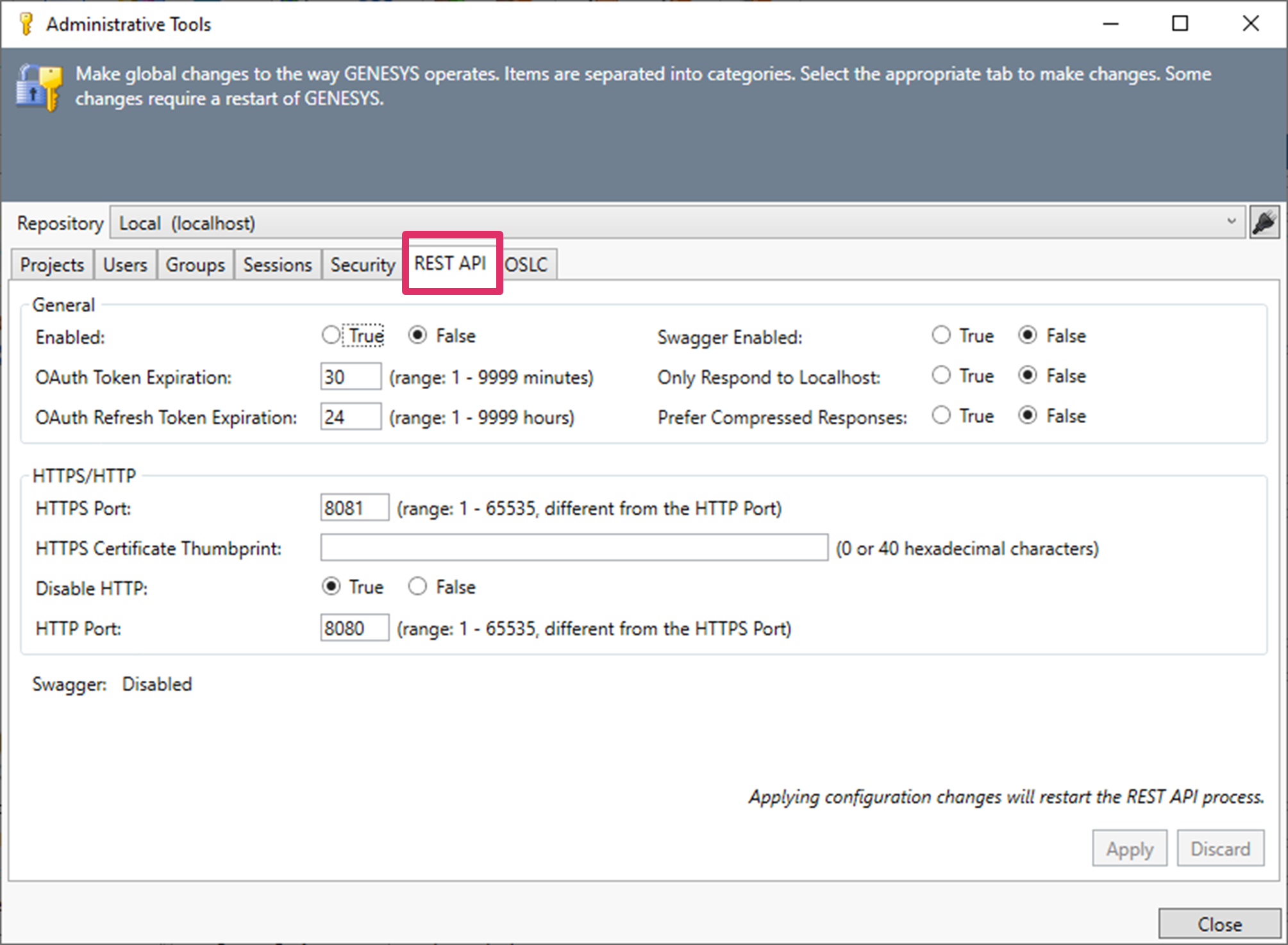
A notice will display on the window and the configuration settings will be read-only if the REST API is not licensed.
The REST API executes an operation to obtain the target entities using the project ID, entity ID, and relation-definition ID combination.
-
Set the configuration options:
-
Enabled (True/False)
-
OAuth Token Expiration (1 - 9999 minutes)
-
OAuth Refresh Token Expiration (1 - 9999 hours)
-
Swagger Enabled (True/False)
-
Only Respond to Localhost (True/False)
|
NOTE: |
When enabled, the REST API will only respond to requests to localhost. This prevents connections that are not local. |
-
Prefer Compressed Responses (True/False)
|
NOTE: |
When the request header indicates the caller supports compression, the REST API will compress responses. This could be useful when network speeds are slow. |
-
HTTPS Port (range: 1 - 65535; different from the HTTP Port)
-
HTTPS Certificate Thumbprint (0 or 40 hexadecimal characters)
-
Disable HTTP (True/False)
-
HTTP Port (range: 1 - 65535; different from the HTTPS Port)
Click Apply to apply the new settings or click Discard to discard them.
If Apply is selected, GENESYS applies the new settings and restarts the REST API
For additional information about the REST API, refer to the GENESYS Server and REST API Architecture Guide.