
Diagram Window Navigation Controls
GENESYS provides several ways to navigate and resize the diagram pane to aide the user in diagram creation, refinement, and review. These include a combination of the Scale and Navigation Controls widget, the View Port, and mouse commands.
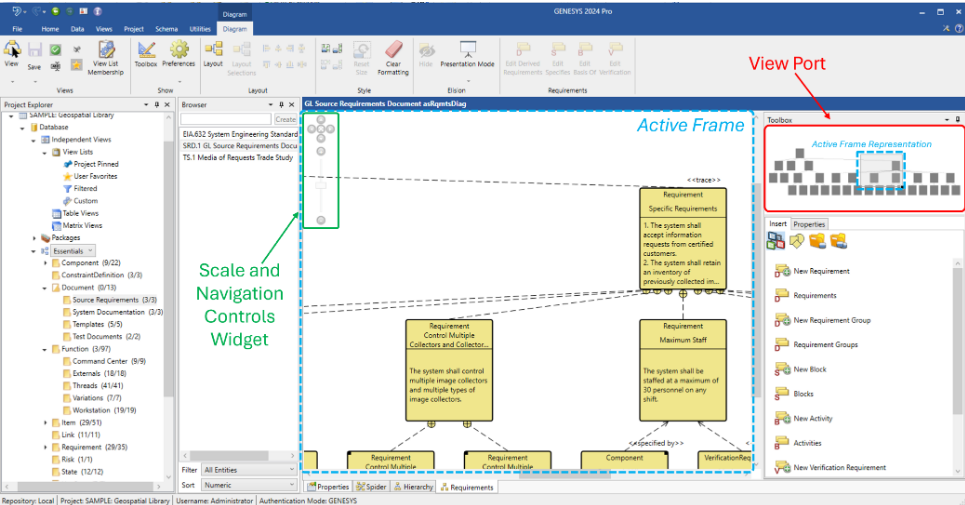
Scale and Navigation Controls Widget
The Scale and Navigation Controls widget provides the following capabilities:
-
Up, Down, Left, Right Control Buttons - click these buttons to incrementally move the Active Frame in the direction of the clicked arrow button.
-
Zoom Bar - Left click on the scale and slide up to zoom in or slide down to zoom out.
-
Fit to Window Button - scales a diagram to fit the entire content into the current screen and centers it in the window. The hot key Ctrl + o will return the diagram to its original 100 % size.
View Port
The View Port shows a greyscale representation of the entire diagram with the Active Frame represented by the grey box with the black square in the bottom right hand corner.
-
In the View Port window, press and hold the left mouse button to move the portion of the diagram displayed in the Active Frame.
-
Left click on the black square in the bottom right hand corner of the grey box and drag to zoom in or out.
Mouse Commands
The mouse provides several additional means of diagram navigation.
-
Zoom - scroll using the mouse wheel to zoom in or out.
-
Pan and Grab - Press and hold the mouse wheel button (or middle mouse button) to change the cursor to a hand icon, signifying the ability gran and pan the diagram. With the mouse wheel depressed, moving the mouse will move the diagram to the desired location.