

The Physical N2 (pronounced "N-squared") diagram represents the physical connections within a system or system segment. Part of the physical architecture representation set, the Physical N2 diagram presents a high-level structured representation of physical connectivity. It is complemented by the Interface N2 diagram which presents a high-level view of the logical connectivity between system components. What these diagrams lack in technical detail (and style) of various block diagram representations, they deliver in simplicity and clarity.
The physical N2 diagram is available for entities in the Component class (as well as any other subclasses of ImplementationUnit).
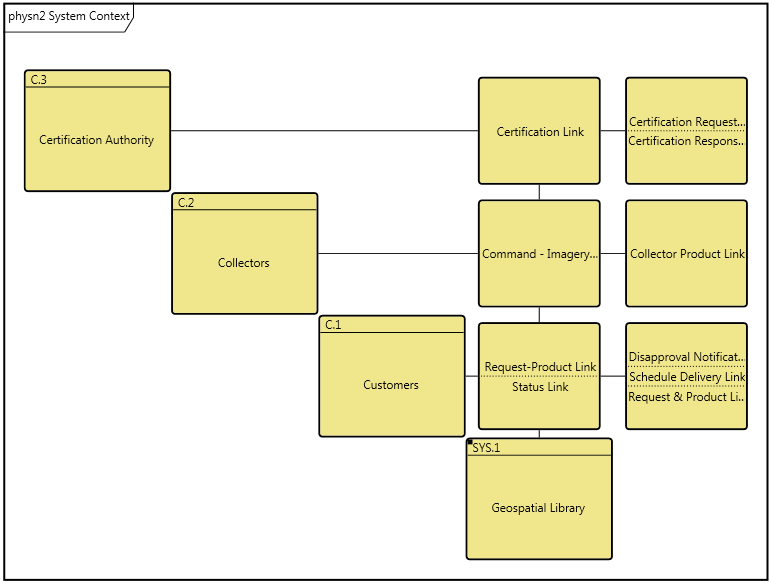
On a physical N2 diagram, the child components are shown on the main diagonal forming an N x N matrix of cells. Links that connect a pair of components are shown on the off-diagonal. Since the physical N2 diagram focuses on physical connection as opposed to directionality, there are no arrows shown on the physical N2 diagram. Instead, the diagram simply represents who is connected to whom.
The lack of directionality means that half of the off-diagonal locations are redundant. If A is connected to B, we know that B is connected to A. Rather than showing this information twice, only the upper half of the diagram is used. The lower off-diagonal cells will be empty by definition.
GENESYS N2 diagram has been extended to display external links as well. Connections appearing in the right-hand column are links that are either (i) connected to a component not displayed on this diagram or (ii) are not connected to any additional components in the system model. This extension of classic N2 diagrams provides valuable context but can be toggled off, as desired.
A physical N2 diagram displays only the connections at that level (links lower in the decomposition are not displayed). The decomposition of components is not considered when placing a link in a cell. If a link connects to both a component on the diagram and a subcomponent of one of those components, it will be shown as an external connection. This maintains consistency with the various block diagrams.
|
NOTE: |
The order of components on a physical N2 diagram is the sorted order of the children. If desired, you can manually change and manage the order using the Change Node Position command. This can be useful for clustering analysis. |
Toolbox Properties
In addition to the classic diagram options, the physical N2 diagram settings include:
-
Show External Nodes - controls whether or not to display links which are connected to components on the diagram but do not have a second connected component on the diagram. Showing external links helps identify disconnected links or links that cross component boundaries.
-
Use Grid Representation - controls whether a matrix layout should be used in place of the traditional node and connecting line representation.
Toolbox Insert
The constructs and key entities tabs allow you to quickly develop your physical N2 diagram, while the all entities tab enables you to relate your components and links to the remainder of your system definition.
Constructs
-
New Child - drop onto the diagram background to create a new block (component) as part of the node composition (built from)
-
Children - drop onto the diagram background to add an existing block (component) as part of the node composition (built from)
-
New Connection - drop onto any diagram node to create a new connection (link) that connects to the node
-
Connections - drop onto any diagram node to relate an existing connection (link) using the connects to relation
Utilities
-
Image - drop onto the diagram to insert a new picture
-
Note - drop onto the diagram to insert a new note (descriptive text in a note icon)
-
Shapes - drag one of the shapes from the toolbox and drop onto the diagram to insert a new shape
Key Entities
-
Component - drop an existing component onto the diagram background to add an existing component as part of the diagram composition (built from)
-
Link - drop an existing link onto a node to relate it to the node using the connects to relation
All Entities - all classes and entities in the system model, allowing you to drag any entity on top of a diagram node to establish relationships with the balance of your system model
Context Menu Commands
-
Arrange
-
Submenu listing entities
Tips and Tricks
-
One of the classic uses of an N2 diagram is clustering analysis as an input to packaging decisions. Using a diagram shape in conjunction with the traditional (non-grid) layout is a good way to graphically indicate clusters.
-
The grid representation of an N2 diagram is not the classic systems engineering representation, but it may be better understood by non-systems engineers. In addition, the grid representation provides more space for icon labels.
-
Since connection nodes on an N2 diagram can represent multiple connections, occasionally there will be more connections in a node than can be displayed. Double-clicking on a connection node presents a pop-up list of all items represented by the node.