
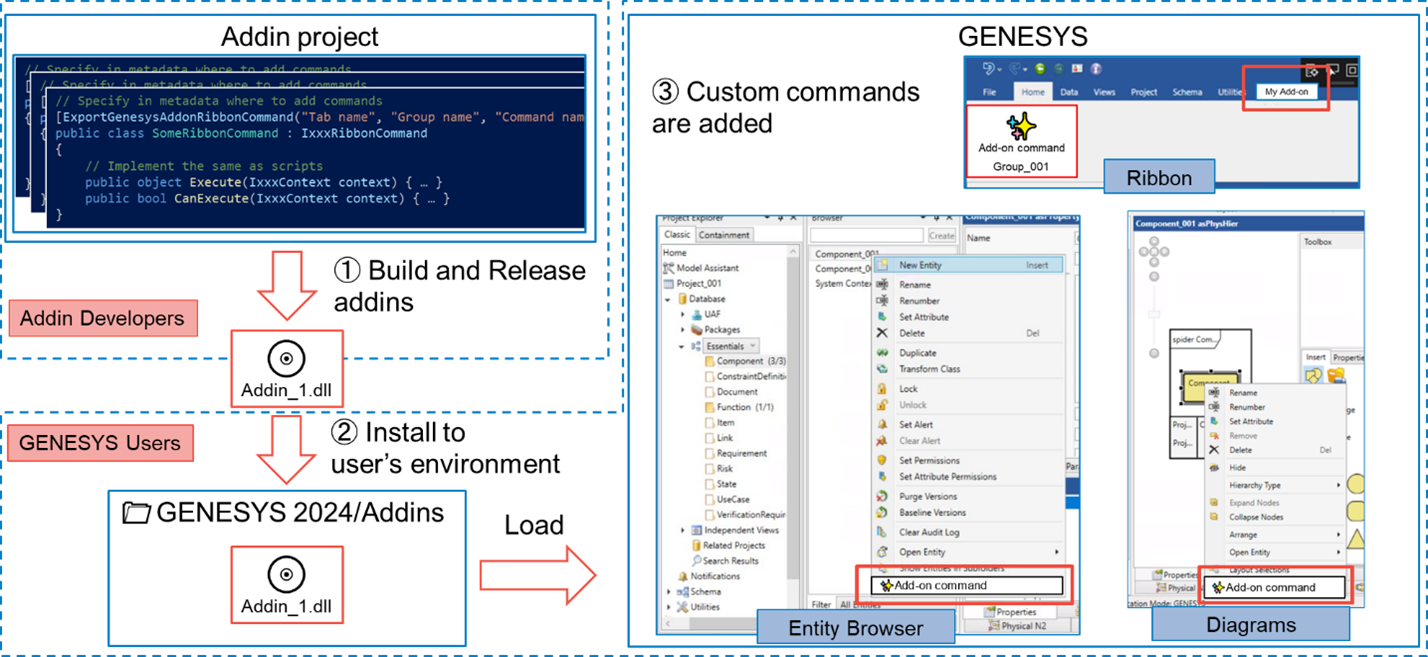
The capabilities of GENESYS can be customized or extended via Add-in framework. By creating and loading an Add-in in GENESYS, you can add menus to the ribbon or context menu and execute operations from those menus.
Add-In Development
In the basic design, add-in developers create a class for each item they wish to add. Developers must implement the required interfaces and configure the necessary attributes.
The types of items that can be added through customization include:
-
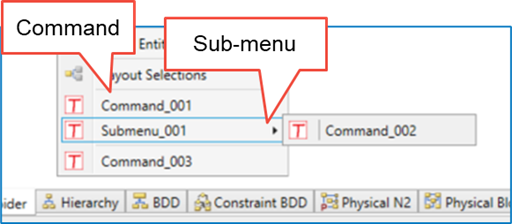
Command: An item used to execute custom processing.
-
Submenu: An item used to organize commands or other submenus into a hierarchical structure.
Using Add-ins, custom items can be added to the following menus and context menus:
-
Ribbon
-
Entity Browser
-
Diagram
Common Interface Specifications for Each Menu
Items added through the Add-in have the following parameters:
-
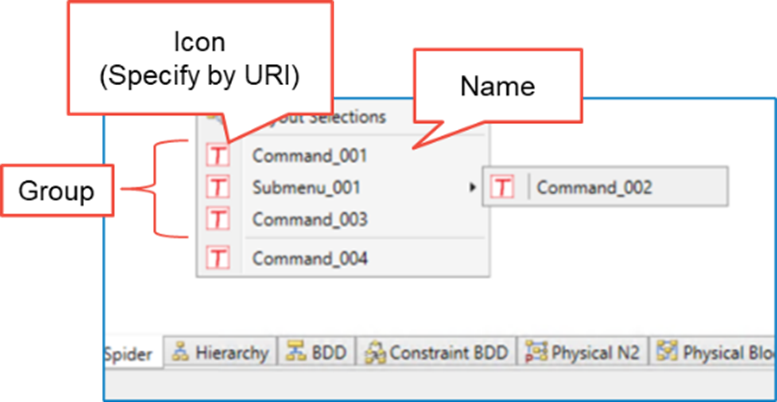
Name: The name displayed for the item.
-
Icon URI: The URI of the icon displayed for the item (optional).
Additionally, the following metadata must be specified for displaying the item in GENESYS:
-
Display Target: One of the following: Ribbon, Entity Browser, or Diagram.
-
Group Name: An identifier used to group items with the same group name together.
Specifications for Items Added to the Ribbon
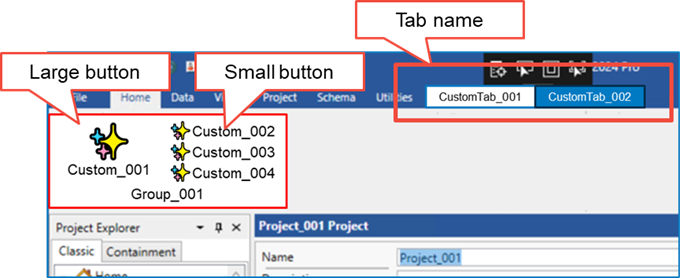
When adding an item to the ribbon, additional metadata must be configured:
-
Tab Name: The name of the ribbon tab where the item will be added. Note: If the same name as a built-in GENESYS tab is specified, a new tab with the same name will be created, and the built-in tab will not be modified.
-
Display Size: The size of the ribbon button. Choose either Large or Small.
Add-In Loading
At the startup of GENESYS, DLLs located in the Add-ins folder within the installation directory are loaded.
Display and Execution of Add-In Commands
Similar to the CanExecute function in scripts, the execution eligibility of each command is determined based on the current state of GENESYS.
Like the Execute function in scripts, the implemented processing can be executed by selecting the add-in command from the respective menu.
|
NOTE: |
If you have any questions or need assistance at any point during this process, please contact Vitech Customer Support at +1.540.951.3999 or via email at support@vitechcorp.com. |