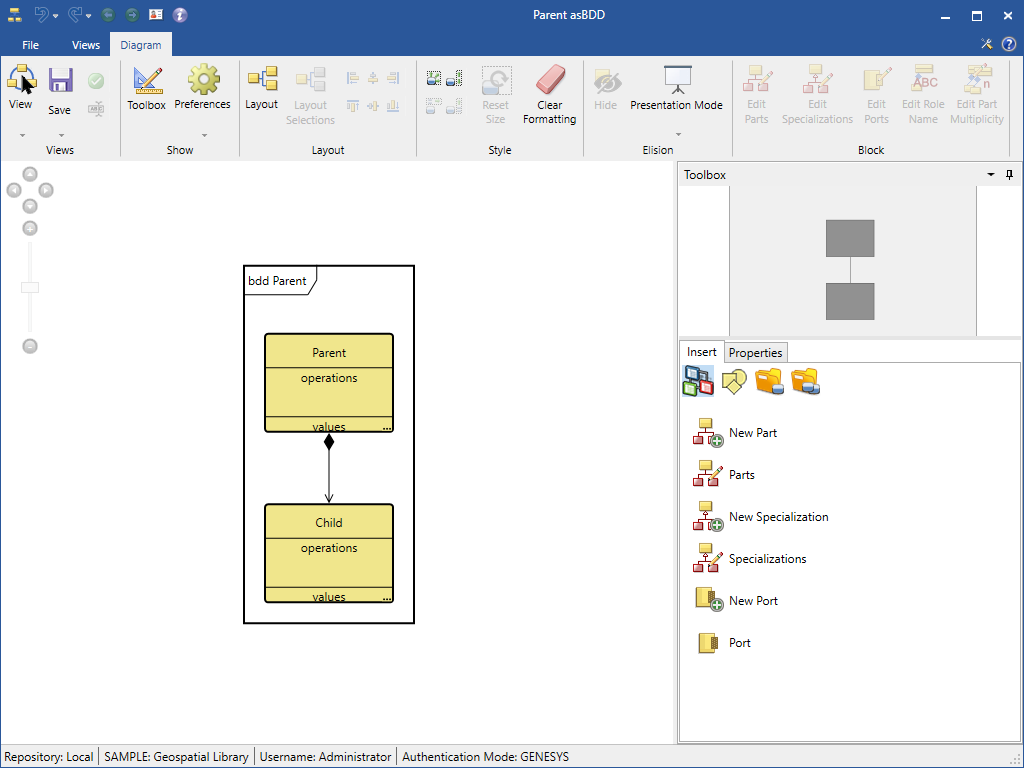
Identifying Parent-Child Relationships in Models
GENESYS easily identifies Parent-Child relationships in models with up and down arrows. An up arrow identifies a Child-Parent relationship and a down arrow identifies a Parent-Child relationship.
When creating these relationships in the Project Browser pane, the Child-Parent and Parent-Child relationships have up and down arrows next to them, respectively.
To create Child-Parent relationship:
-
Left-click on the potential Child entity and drag-drop it onto the potential Parent entity.
-
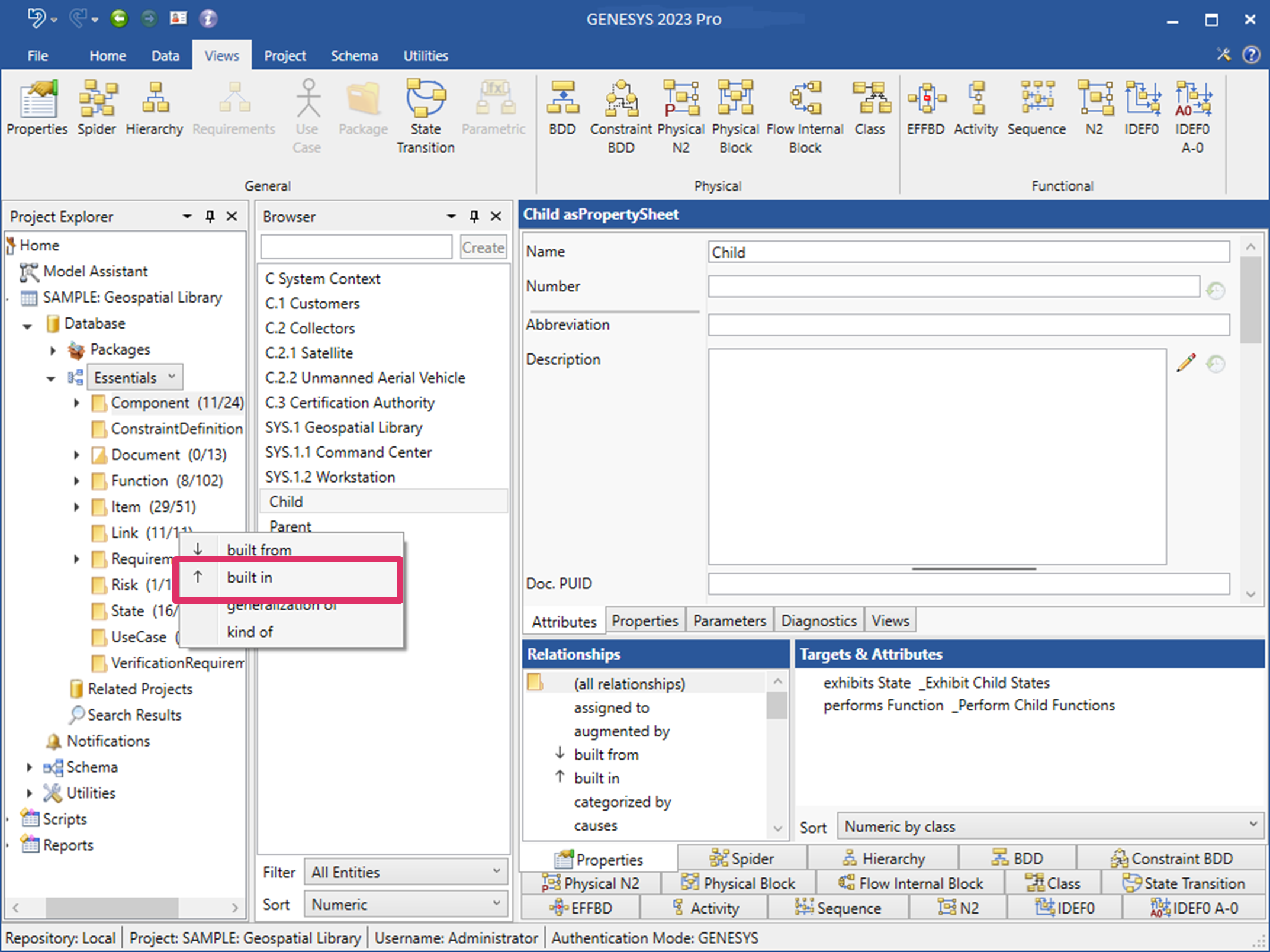
Select á built in for the Child relationship on the drop-down menu that appears, as shown below:
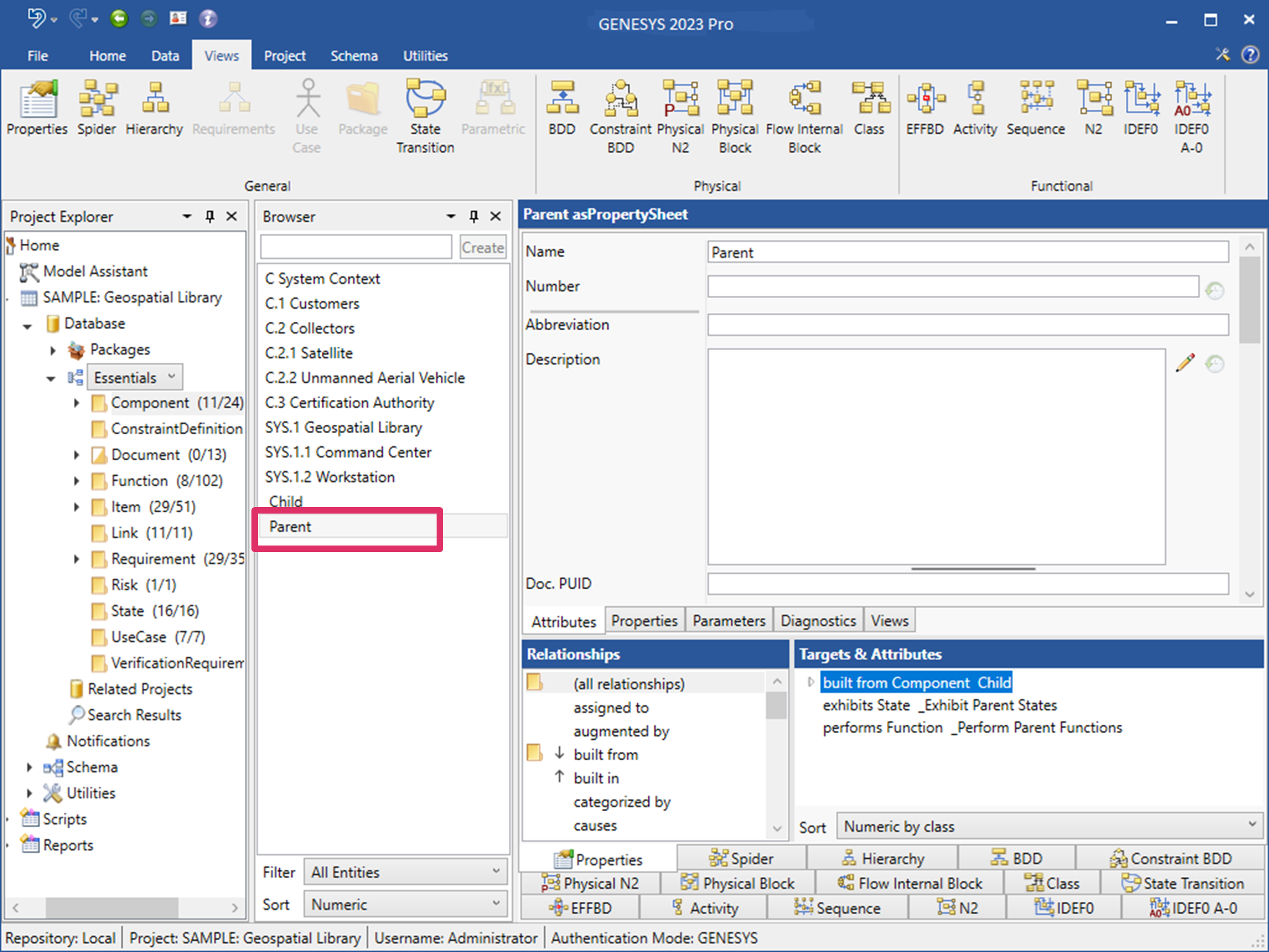
The new relationship appears in the Targets & Attributes pane on the bottom left side of the window. If the Parent entity is highlighted in the Browser pane, built from Component Child displays in the Targets & Attributes pane, as shown below.
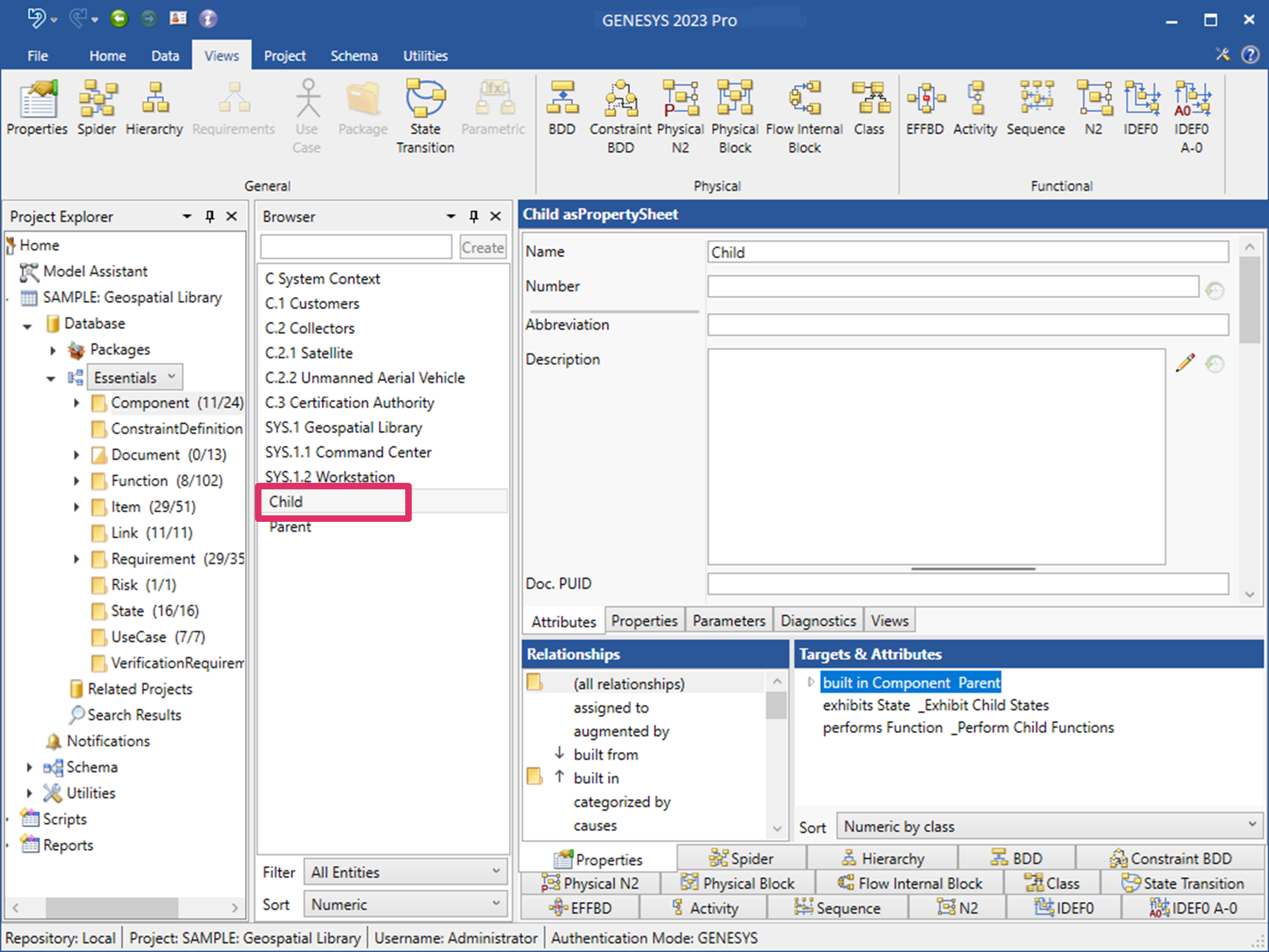
If the Child entity is highlighted in the Browser pane, built in Component Parent displays in the Targets & Attributes pane, shown below.
|
NOTE: |
GENESYS enables you to create Child-Parent relationships with any of the classes. For instance, if you make a function a child of a parent function, it is represented by the decomposes/decomposed by relationship. |
The new Child-Parent relationship is shown on the Hierarchy diagram, shown below.
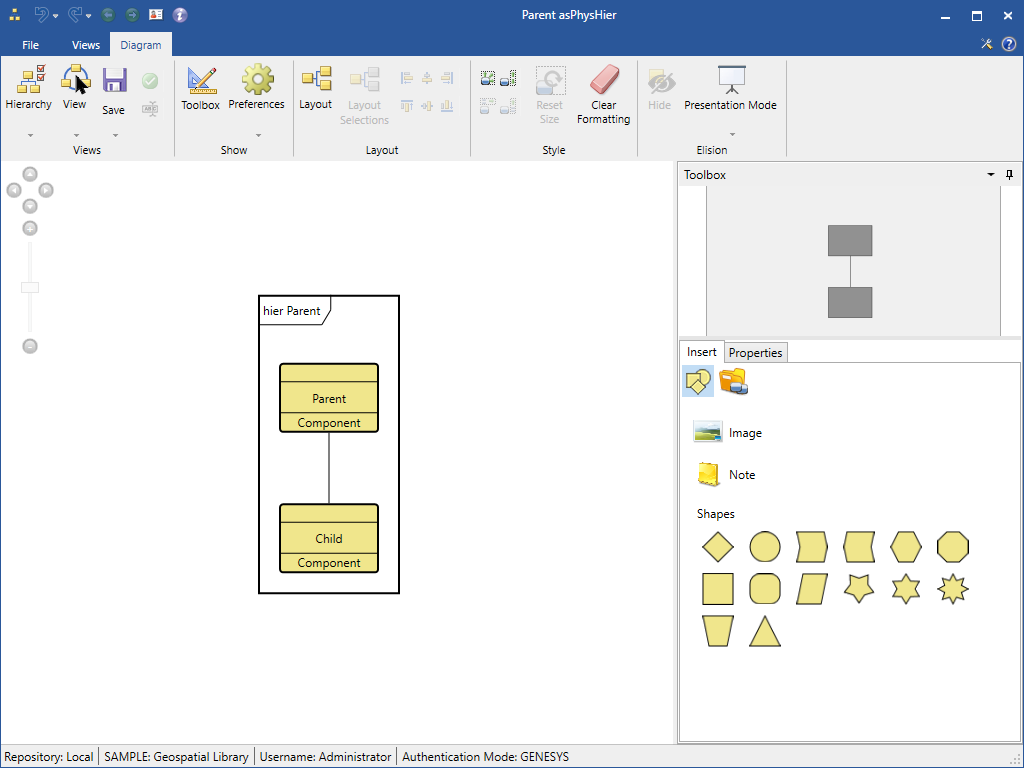
The BDD also shows the new relationship.