
Getting Started
The installation program creates a new program group entry on the start ribbon with the title "GENESYS 2026 Edition" or "GENESYS 2026 Server Edition". It contains an entry labeled "GENESYS 2026 Edition" or "GENESYS 2026 Server Client". To run GENESYS, simply click on either of these ribbon items.

NOTE: |
Networked Licenses If you are using networked licenses, you will be prompted to select a license before proceeding to the GENESYS login window. |
The GENESYS login window shown below will open. GENESYS is configured with one initial user account, the Administrator account. The user name is not case sensitive but the password is. Log in as shown below:
User Name: Administrator
Password: admin
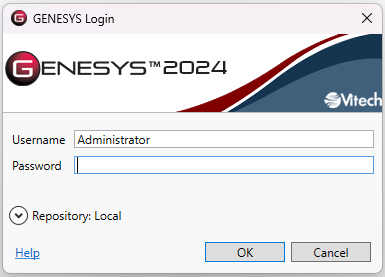
If you are logging into a different repository, expand the arrow by the Repository: Local entry. This will allow you to change the repository you are logging into.
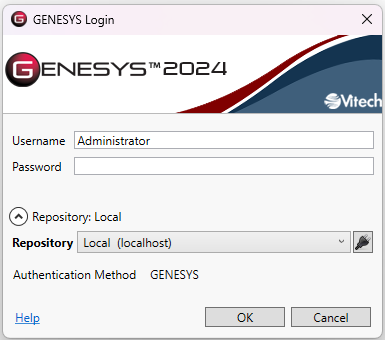
If you have previously connected to the repository, it will be available in the drop. If you need to add a new repository to the list, select the plug beside the Repository line and that will bring up the following:
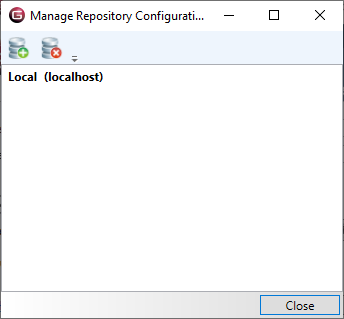
Next, select the database with the green plus on it. That will bring up the following screen:
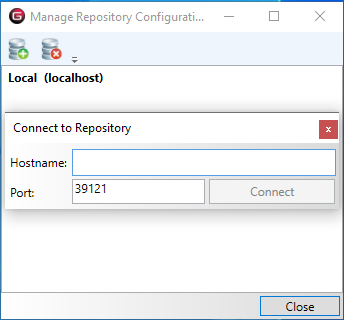
Enter the computer name or the IP address of the machine. The Port value is the standard port value for this version. If you changed that on the other machine you will need to change it here. If you do not know, leave it as supplied. Click Connect. At this point GENESYS will reach out to ensure that there is a machine with that name available. Once successful, the new machine will be added to the list. Then you can click Close on the previous screen. Then select the new repository from the login screen. At this point, GENESYS tries to make a connection to the other repository. Once successful, you can enter your login information.
At this point, the GENESYS software is installed and licensed. Now you're ready to get started using GENESYS.
After logging in, you will be at the Home screen. From this screen you can start using GENESYS.
New user accounts can be created and passwords may be changed via the User/Group tabs in the Administrative Tools link.